Today Camlex 5.0 and Camlex.Client 3.0 were released. In this release target framework version of both libraries has been changed from .Net 3.5 to .Net 4.5 in order to simplify usage of the libraries in the newer Sharepoint versions running on CLR 4.0 (SP2013/SP2016/SP2019) and Sharepoint Online. Also with this change it became possible to use Camlex.Client in Azure functions (V1 which use .Net 4.5) – earlier it was needed to recompile source code with targeted .Net 4.5 which was not convenient. Source code of basic Camlex library is avaialble in Github master branch, and source code of Camlex.Client is in client branch.
Also both Nuget packages have been updated: Camlex.NET.dll and Camlex.Client.dll. With this fix it will be easier to use Camlex with newer Sharepoint versions.
Update: after performing release described above I realized that it will be more convenient for Azure functions to reference Microsoft.SharePoint.Client.dll of v16.1 (Sharepoint Online). For console apps it won’t add complexity since it is quite easy to redirect assembly binding there via app.config. So I released new Camlex.Client 3.1 which is targeted for .Net 4.5 and references Microsoft.SharePoint.Client.dll of v16.1.
Sometime we need to get a list of all Office 365 groups where user is owner. It is relatively easy to get list of groups where user is a member using the following endpoints:
(First 2 end points work with app permissions while last endpoint works with delegated permissions). Unfortunately the same methods don’t work for owners. If you will try to user “ownerOf” in endpoints the following error will be shown:
Note that we’ve added “?$expand=owners” to the query string. With this additional param each group will be returned with list of it’s owners. After that yo may filter groups and include only those where current users is an owner. This is of course not so convenient and fast as above methods for owners but better than nothing.
Suppose that you have your product’s documentation in the Word format and at some point decide to create online version of this documentation. Built-in convert to html works not very well so what other ways are available? Below you will find several possible ways to convert product documentation from Word to online version. These methods are based on Pandoc project which may convert document between many popular formats.
1. Word to EPUB and then to html
This method is based on the fact that EPUB format is internally based on html. As a bonus it splits the Word document into separate html documents per chapter. So if you have single big Word document with many images it will be divided into several html chapters which is better for online version than single big html page.
At first we need to convert Word to EPUB:
pandoc -f docx -t epub –o output.epub input.docx
After that you will have output.epub ebook. Change extension from epub to zip and unzip the file to the local folder. In EPUB subfolder of this folder you will find the following files structure:
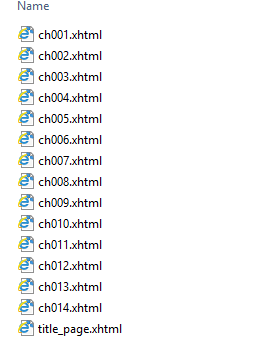
Here media folder will contain all exported images from the Word file and nav.xhtml will contain clickable table of contents. And text subfolder will contain html files for particular chapters:
2. Word to Markdown and then visualize with MkDocs site generator
With this method we at first generate Word document to Markdown format using the same Pandoc tool:
pandoc -f docx -t markdown –o output.md input.docx --extract-media media
Here we explicitly specified folder where Pandoc should extract images from Word document. When we have got Markdown file we may create static site for it using MkDocs tool. With this tool we at first need to create new project folder and put mardown file with images there:
python -m mkdocs new test
It will also put the following mkdocs.yml file to site’s root folder:
site_name: My Docs
and then run:
python -m mkdocs serve
which will launch local web server which will host your online documentation. Also it is possible to choose different UI themes from the list of themes available on MkDocs site.
Sometimes we need to get current user’s principal in Azure function in order to perform does user has permissions to perform requested action (of course when call to Azure function is done with user context). Recently MS announced feature called ClaimsPrincipal binding data for Azure Functions. With this feature it should be possible to inject client principal as function parameter:
public static IActionResult Run(HttpRequest req, ClaimsPrincipal principal, ILogger log)
{
     // ...
     return new OkResult();
}
Note that according to documentation this feature will be only available for Azure functions which use v2 runtime (which also means that they use .Net Core instead of .Net Framework). I tested it and at least currently this feature is not available for my dev tenant.
Fortunately there is a way to read current user’s principal which works both for v1 and v2. It is based on using special HTTP header X-MS-CLIENT-PRINCIPAL-NAME which contains user name (see Access user claims):
So we can read current user’s principal name in Azure function like this:
var headerValues = req.Headers.GetValues("X-MS-CLIENT-PRINCIPAL-NAME");
return headerValues.FirstOrDefault();
and after that perform necessary authorization checks.
Update 2018-12-28: above method with using HTTP headers works but it is possible to replace X-MS-CLIENT-PRINCIPAL-NAME header with other user id and perform calls from behalf of this user. Here is how you may get current user principal using object model:
In one of my previous posts I showed example how to create Azure AD groups with owners which were added right after group has been created: Create Azure AD group and set group owner using Microsoft Graph Client library. This approach works but on some tenants it may cause slowness and performance problems during group’s creation. You may have the following error when use this approach:
"code": "ResourceNotFound" "message": "Resource provisioning is in progress. Please try again."
This issue is also reported on github: After office 365 group is created, the group site provisioning is pending. Also if you will try to create group using PnP PowerShell or OfficeDevPnP library you may face with the same issue. PnP uses UnifiedGroupsUtility.CreateUnifiedGroup method to create groups. Let’s check it’s code:
public static UnifiedGroupEntity CreateUnifiedGroup(string displayName, string description, string mailNickname,
 string accessToken, string[] owners = null, string[] members = null, Stream groupLogo = null,
 bool isPrivate = false, int retryCount = 10, int delay = 500)
{
 UnifiedGroupEntity result = null;

 if (String.IsNullOrEmpty(displayName))
 {
  throw new ArgumentNullException(nameof(displayName));
 }

 if (String.IsNullOrEmpty(description))
 {
  throw new ArgumentNullException(nameof(description));
 }

 if (String.IsNullOrEmpty(mailNickname))
 {
  throw new ArgumentNullException(nameof(mailNickname));
 }

 if (String.IsNullOrEmpty(accessToken))
 {
  throw new ArgumentNullException(nameof(accessToken));
 }

 try
 {
  // Use a synchronous model to invoke the asynchronous process
  result = Task.Run(async () =>
  {
   var group = new UnifiedGroupEntity();

   var graphClient = CreateGraphClient(accessToken, retryCount, delay);

   // Prepare the group resource object
   var newGroup = new Microsoft.Graph.Group
   {
    DisplayName = displayName,
    Description = description,
    MailNickname = mailNickname,
    MailEnabled = true,
    SecurityEnabled = false,
    Visibility = isPrivate == true ? "Private" : "Public",
    GroupTypes = new List<string> { "Unified" },
   };

   Microsoft.Graph.Group addedGroup = null;
   String modernSiteUrl = null;

   // Add the group to the collection of groups (if it does not exist
   if (addedGroup == null)
   {
    addedGroup = await graphClient.Groups.Request().AddAsync(newGroup);

    if (addedGroup != null)
    {
     group.DisplayName = addedGroup.DisplayName;
     group.Description = addedGroup.Description;
     group.GroupId = addedGroup.Id;
     group.Mail = addedGroup.Mail;
     group.MailNickname = addedGroup.MailNickname;

     int imageRetryCount = retryCount;

     if (groupLogo != null)
     {
      using (var memGroupLogo = new MemoryStream())
      {
       groupLogo.CopyTo(memGroupLogo);

       while (imageRetryCount > 0)
       {
        bool groupLogoUpdated = false;
        memGroupLogo.Position = 0;

        using (var tempGroupLogo = new MemoryStream())
        {
         memGroupLogo.CopyTo(tempGroupLogo);
         tempGroupLogo.Position = 0;

         try
         {
          groupLogoUpdated = UpdateUnifiedGroup(addedGroup.Id, accessToken, groupLogo: tempGroupLogo);
         }
         catch
         {
          // Skip any exception and simply retry
         }
        }

        // In case of failure retry up to 10 times, with 500ms delay in between
        if (!groupLogoUpdated)
        {
         // Pop up the delay for the group image
         await Task.Delay(delay * (retryCount - imageRetryCount));
         imageRetryCount--;
        }
        else
        {
         break;
        }
       }
      }
     }

     int driveRetryCount = retryCount;

     while (driveRetryCount > 0 && String.IsNullOrEmpty(modernSiteUrl))
     {
      try
      {
       modernSiteUrl = GetUnifiedGroupSiteUrl(addedGroup.Id, accessToken);
      }
      catch
      {
       // Skip any exception and simply retry
      }

      // In case of failure retry up to 10 times, with 500ms delay in between
      if (String.IsNullOrEmpty(modernSiteUrl))
      {
       await Task.Delay(delay * (retryCount - driveRetryCount));
       driveRetryCount--;
      }
     }

     group.SiteUrl = modernSiteUrl;
    }
   }

   #region Handle group's owners

   if (owners != null && owners.Length > 0)
   {
    await UpdateOwners(owners, graphClient, addedGroup);
   }

   #endregion

   #region Handle group's members

   if (members != null && members.Length > 0)
   {
    await UpdateMembers(members, graphClient, addedGroup);
   }

   #endregion

   return (group);

  }).GetAwaiter().GetResult();
 }
 catch (ServiceException ex)
 {
  Log.Error(Constants.LOGGING_SOURCE, CoreResources.GraphExtensions_ErrorOccured, ex.Error.Message);
  throw;
 }
 return (result);
}
As you can see it basically uses the same approach: at first creates group and then adds owners/members using UpdateOwners/UpdateMembers methods.
Workaround for this problem is to not use Graph API client library and use plain REST calls and special OData bind syntax for owners and members like described here: Create a Group in Microsoft Graph API with a Owner
This approach works i.e. groups are created with owners and members from beginning and you don’t have to call another methods to add them separately. But is it possible to do the same with Graph API .Net client library (it would be good because it is more convenient to use client library than raw REST calls). The answer is yes it is possible and below it is shown how to do it.
Need to say that if you use only Graph API .Net client library classes it is not possible to do it. If you check property Group.Owners you will see that it has IGroupOwnersCollectionWithReferencesPage type:
In Graph API library there is only one class which implements this interface GroupOwnersCollectionWithReferencesPage and you can’t create instance of this class with owners specified and pass to Group.Owners property – it has to be used with Groups[].Request.Owners.References when you read group owners with pagination. So my first attempt was to create custom class which inherits IGroupOwnersCollectionWithReferencesPage interface which would allow list of user in constructor and then pass it’s instance to Group.Owners property before creation:
public class LightOwners : CollectionPage<DirectoryObject>, IGroupOwnersCollectionWithReferencesPage
{
    public LightOwners()
    {
    }

    public LightOwners(List<User> owners)
    {
        if (owners != null)
        {
            owners.ForEach(o => this.Add(o));
        }
    }

    public void InitializeNextPageRequest(IBaseClient client, string nextPageLinkString)
    {
    }

    public IGroupOwnersCollectionWithReferencesRequest NextPageRequest { get; }
}
This approach didn’t work: group object was serialized to JSON when client library made POST request to https://graph.microsoft.com/v1.0/groups for creating the group with property “owners” and all users’ properties were serialized as well – while we need "owners@odata.bind" and "https://graph.microsoft.com/v1.0/users/{id1}" string instead of fully serialized user object.
After that I tried another approach which worked: at first created new class GroupExtended which inherits Group class from Graph API library:
public class GroupExtended : Group
{
 [JsonProperty("owners@odata.bind", NullValueHandling = NullValueHandling.Ignore)]
 public string[] OwnersODataBind { get; set; }
 [JsonProperty("members@odata.bind", NullValueHandling = NullValueHandling.Ignore)]
 public string[] MembersODataBind { get; set; }
}
As you can see it adds 2 new properties OwnersODataBind and MembersODataBind which are serialized to "owners@odata.bind" and "members@odata.bind" respectively. Then I modified UnifiedGroupsUtility.CreateUnifiedGroup method to create groups with owners and members from beginning using single API call instead of adding them after group was created:
public static UnifiedGroupEntity CreateUnifiedGroup(string displayName, string description, string mailNickname,
 string accessToken, string[] owners = null, string[] members = null, Stream groupLogo = null,
 bool isPrivate = false, int retryCount = 10, int delay = 500)
{
 UnifiedGroupEntity result = null;

 if (String.IsNullOrEmpty(displayName))
 {
  throw new ArgumentNullException(nameof(displayName));
 }

 if (String.IsNullOrEmpty(description))
 {
  throw new ArgumentNullException(nameof(description));
 }

 if (String.IsNullOrEmpty(mailNickname))
 {
  throw new ArgumentNullException(nameof(mailNickname));
 }

 if (String.IsNullOrEmpty(accessToken))
 {
  throw new ArgumentNullException(nameof(accessToken));
 }

 try
 {
  // Use a synchronous model to invoke the asynchronous process
  result = Task.Run(async () =>
  {
   var group = new UnifiedGroupEntity();

   var graphClient = CreateGraphClient(accessToken, retryCount, delay);

   // Prepare the group resource object
   var newGroup = new GroupExtended
   {
    DisplayName = displayName,
    Description = description,
    MailNickname = mailNickname,
    MailEnabled = true,
    SecurityEnabled = false,
    Visibility = isPrivate == true ? "Private" : "Public",
    GroupTypes = new List<string> { "Unified" }
   };

   if (owners != null && owners.Length > 0)
   {
    var users = GetUsers(graphClient, owners);
    if (users != null)
    {
     newGroup.OwnersODataBind = users.Select(u => string.Format("https://graph.microsoft.com/v1.0/users/{0}", u.Id)).ToArray();
    }
   }

   if (members != null && members.Length > 0)
   {
    var users = GetUsers(graphClient, members);
    if (users != null)
    {
     newGroup.MembersODataBind = users.Select(u => string.Format("https://graph.microsoft.com/v1.0/users/{0}", u.Id)).ToArray();
    }
   }

   Microsoft.Graph.Group addedGroup = null;
   String modernSiteUrl = null;

   // Add the group to the collection of groups (if it does not exist
   if (addedGroup == null)
   {
    addedGroup = await graphClient.Groups.Request().AddAsync(newGroup);

    if (addedGroup != null)
    {
     group.DisplayName = addedGroup.DisplayName;
     group.Description = addedGroup.Description;
     group.GroupId = addedGroup.Id;
     group.Mail = addedGroup.Mail;
     group.MailNickname = addedGroup.MailNickname;

     int imageRetryCount = retryCount;

     if (groupLogo != null)
     {
      using (var memGroupLogo = new MemoryStream())
      {
       groupLogo.CopyTo(memGroupLogo);

       while (imageRetryCount > 0)
       {
        bool groupLogoUpdated = false;
        memGroupLogo.Position = 0;

        using (var tempGroupLogo = new MemoryStream())
        {
         memGroupLogo.CopyTo(tempGroupLogo);
         tempGroupLogo.Position = 0;

         try
         {
          groupLogoUpdated = UnifiedGroupsUtility.UpdateUnifiedGroup(addedGroup.Id, accessToken, groupLogo: tempGroupLogo);
         }
         catch
         {
          // Skip any exception and simply retry
         }
        }

        // In case of failure retry up to 10 times, with 500ms delay in between
        if (!groupLogoUpdated)
        {
         // Pop up the delay for the group image
         await Task.Delay(delay * (retryCount - imageRetryCount));
         imageRetryCount--;
        }
        else
        {
         break;
        }
       }
      }
     }

     int driveRetryCount = retryCount;

     while (driveRetryCount > 0 && String.IsNullOrEmpty(modernSiteUrl))
     {
      try
      {
       modernSiteUrl = UnifiedGroupsUtility.GetUnifiedGroupSiteUrl(addedGroup.Id, accessToken);
      }
      catch
      {
       // Skip any exception and simply retry
      }

      // In case of failure retry up to 10 times, with 500ms delay in between
      if (String.IsNullOrEmpty(modernSiteUrl))
      {
       await Task.Delay(delay * (retryCount - driveRetryCount));
       driveRetryCount--;
      }
     }

     group.SiteUrl = modernSiteUrl;
    }
   }

//                    #region Handle group's owners
//
//                    if (owners != null && owners.Length > 0)
//                    {
//                        await UpdateOwners(owners, graphClient, addedGroup);
//                    }
//
//                    #endregion

//                    #region Handle group's members
//
//                    if (members != null && members.Length > 0)
//                    {
//                        await UpdateMembers(members, graphClient, addedGroup);
//                    }
//
//                    #endregion

   return (group);

  }).GetAwaiter().GetResult();
 }
 catch (ServiceException ex)
 {
  //Log.Error(Constants.LOGGING_SOURCE, CoreResources.GraphExtensions_ErrorOccured, ex.Error.Message);
  throw;
 }
 return (result);
}

private static List<User> GetUsers(GraphServiceClient graphClient, string[] owners)
{
 if (owners == null)
 {
  return new List<User>();
 }
 var result = Task.Run(async () =>
 {
  var usersResult = new List<User>();
  var users = await graphClient.Users.Request().GetAsync();
  while (users.Count > 0)
  {
   foreach (var u in users)
   {
    if (owners.Any(o => u.UserPrincipalName.ToLower().Contains(o.ToLower())))
    {
     usersResult.Add(u);
    }
   }

   if (users.NextPageRequest != null)
   {
    users = await users.NextPageRequest.GetAsync();
   }
   else
   {
    break;
   }
  }

  return usersResult;
 }).GetAwaiter().GetResult();
 return result;
}

private static GraphServiceClient CreateGraphClient(String accessToken, int retryCount = 10, int delay = 500)
{
 // Creates a new GraphServiceClient instance using a custom PnPHttpProvider
 // which natively supports retry logic for throttled requests
 // Default are 10 retries with a base delay of 500ms
 var result = new GraphServiceClient(new DelegateAuthenticationProvider(
  async (requestMessage) =>
  {
   if (!String.IsNullOrEmpty(accessToken))
   {
    // Configure the HTTP bearer Authorization Header
    requestMessage.Headers.Authorization = new AuthenticationHeaderValue("bearer", accessToken);
   }
  }), new PnPHttpProvider(retryCount, delay));

 return (result);
}
And after that groups were created successfully with owners and members. At first code resolves specified users by their emails and then fills OwnersODataBind and MembersODataBind properties with strings like "https://graph.microsoft.com/v1.0/users/{id1}" (we need to resolve uses from Azure AD first in order to get their ids to build these strings). After that it creates group with single call and it contains specified owners and members. So this approach allows to create groups with owners and members set from beginning.
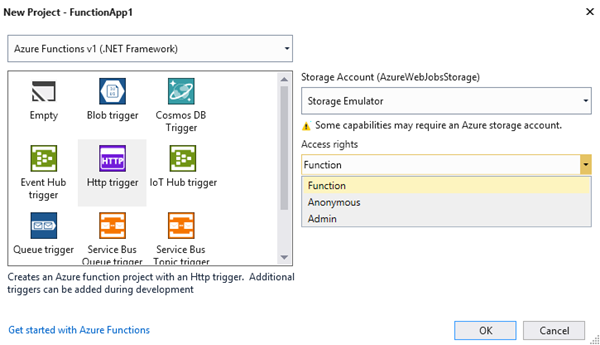
Function – a function-specific API key is required. This is the default value if none is provided.
Anonymous - no API key is required
Admin - the master key is required
More info about these keys can be found here. But how this chose affects Visual Studio project? There are number of files created after you click Ok on the above dialog window:
sln – solution file
csproj – project file
host.json – host settings file
local.settings.json – local app settings file
Function1.cs – code of Azure function
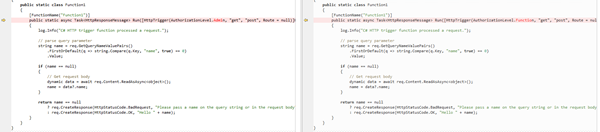
The difference is only in function code cs file (Function1.cs): different AuthorizationLevel values will be passed to HttpTrigger attribute when different access rights are chosen:
Other files are equal. Hope that this info will help to understand Azure functions project structure better.
As you probably know Sharepoint allows to export list content into RSS format. There may be one issue however: some items may not be shown in Firefox default RSS viewer although these items exist in page source (i.e. returned from server). If you will check browser console you may find the following error there:
Items which are not rendered correctly have enclosure tag while items which are rendered correctly don’t have it.
In order to fix this issue you may use the following workaround for Sharepoint on-premise: create ashx handler, put it to /Layouts subfolder, code of the handler will send internal http request to OTB /_layouts/15/listfeed.aspx?List={listId} url, then remove enclosure tag via Regex and return final result to the response (i.e. implement kind of proxy for OTB RSS feed):
string url = string.Format("{0}?List={1}", SPUrlUtility.CombineUrl(web.Url, "_layouts/15/listfeed.aspx"), list.ID);
var request = (HttpWebRequest)WebRequest.Create(url);
request.Credentials = CredentialCache.DefaultNetworkCredentials;
var response = (HttpWebResponse)request.GetResponse();
if (response.StatusCode == HttpStatusCode.OK)
{
	using (var stream = response.GetResponseStream())
	{
		using (var reader = new StreamReader(stream))
		{
			result = reader.ReadToEnd();
		}
	}
	result = Regex.Replace(result, @"<enclosure.+?/>", string.Empty);
}
As result there won’t be enclosure tag and RSS feed will be rendered correctly in Firefox.