Showing posts with label Sharepoint Designer. Show all posts

Wednesday, March 21, 2018

How to reset credentials for Sharepoint Designer

Here are instructions of how to reset credentials for Sharepoint Designer:

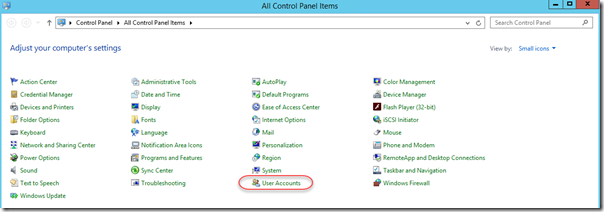
1. Go to Windows control panel and select User accounts:

01

2. In opened window click Manage your credentials:

02

3. Then choose Windows credentials:

03

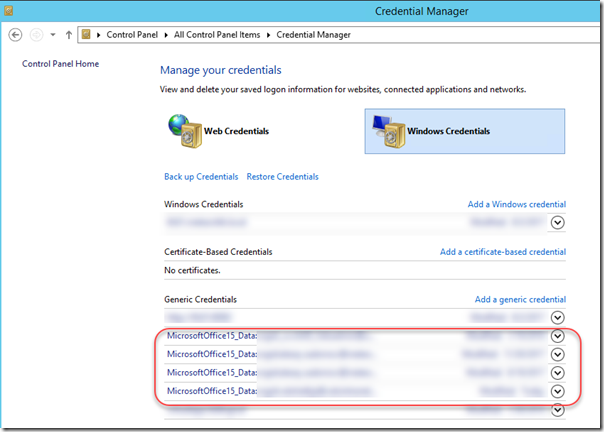
4. On credentials window under Generic credentials there will be account which start with “MicrosoftOffice15_Data:” prefix (this is a prefix for Sharepoint Designer 2013. For other versions most probably prefix will be different):

04

Find those which was cached for your site and remove it from the list.

After that if you will open this site again in Sharepoint Designer it will ask to enter credentials.

Thursday, April 27, 2017

SP Editor Chrome extension: free open source alternative to Sharepoint Designer

Did you ever face with situation when you need to debug some javascript code on customer’s Sharepoint environment or change something in css stylesheets, but there is no Sharepoint Designer installed on server. Or when you need to make fixes on Sharepoint Online site, but don’t have Sharepoint Designer on your PC right now? What do we do in such situations: download files, make modifications, upload them, check in, test changes, again download and make modifications, etc. Boring process. Fortunately nowadays there is convenient tool created of one of my work buddies Tomi Tavela: SP Editor. In this post I will show it’s features and what you can do with it.

Once you’ve installed it to the Chrome by clicking F12 there will be new Sharepoint tab in browser Developer tools which looks like this:

There are 2 checkboxes on the start page which are unchecked by default:

  • Update changes to Sharpepoint
  • Publish a Major

If you want to save major changes to Sharepoint by clicking Ctrl-S then check both checkboxes. Otherwise tool won’t make changes on living Sharepoint site.

In order to start working open Sharepoint site in the browser and open Sharepoint tab in developer tools. I personally often use Edit file feature, let’s check how it works. First of all we open File editor tab and select file which we want to edit:

Then we edit selected file in the right frame area and click Ctrl-S when changes are ready in order to save them. File is saved to Sharepoint and checked in with major version so you may test it on the page immediately (refresh the page with Ctrl-F5 in order to get new changes). Moreover as you can see on the screenshot above editor has intellisense.

Let’s briefly check other features.

Scriptlinks – allows to add and remove script links of web and site level:

Files – upload new file to Style library and optionally inject it to the site via script links:

Web properties – add, change or remove web property bag values:

List properties – add, change or remove list property bag values:

Webhooks – simplifies adding of web hooks to the lists or doclibs (see web hooks):

PnP JS Console v2.0.4 – console for simplifying making REST calls to Sharepoint via pnp-js-core library. Also with intellisense:

Page editor – extension for editing web parts on the publishing pages developed by another great guy Andrey Markeev:

As you can see SP Editor is created by developers and for developers for simplifying our everyday tasks. It is open source, source code is available here. So big thanks to Tomi and all other developers who made contributions for such useful tool)
Friday, December 3, 2010

Install Sharepoint designer 2007 and 2010 on single machine

Today I encountered with interesting problem: I needed to install both versions of Sharepoint Designer (2007 and 2010) on single machine. The problem was in architectural versions of the application. On my host I have Windows 7 x64 and Office Professional Plus 2010 x64 installed. Sharepoint Designer 2007 doesn’t have x64 version so I just installed available x86 version first (by going from earlier version 2007 to the most recent 2010 version). In opposite Sharepoint Designer 2010 exists for x86 and x64 architectures. As I have most of software for x64, I tried to install SPD 2010 x64 first. But during installation I encountered with the following error message:

image

I will provide also text here for search engines:

You cannot install the 64-bit version of Office 2010 because you have 32-bit Office products installed. These 32-bit products are not supported with 64-bit installations:

    Microsoft Office SharePoint Designer 2007

If you want to install 64-bit Office 2010, you must uninstall all 32-bit Office products first, and then run setup.exe in the x64 folder. If you want to install 32-bit Office 2010, close this Setup program. and then either go to the x86 folder at the root of your CD or DVD and run setup.exe, or get the 32-bit Office 2010 from the same place you purchased 64-bit Office 2010.

Quite interesting. Ok lets try to install SPD 2010 x86. No luck either:

image

You cannot install the 32-bit version of Office 2010 because you have 64-bit Office products installed. These 64-bit products are not supported with 32-bit installations:

    Microsoft Office Professional Plus 2010

If you want to install 32-bit Office 2010, you must uninstall all 64-bit Office products first, and then run setup.exe in the x86 folder. If you want to install 64-bit Office 2010, close this Setup program, and then either go to the x64 folder at the root of your CD or DVD and run setup.exe, or get the 64-bit Office 2010 from the same place you purchased 32-bit Office 2010.

So I’m not able to install SPD 2010 x64 because of SPD 2007 x86 is already installed and I can’t install SPD 2010 x86 because I have Office 2010 x64 installed. In order to proceed I uninstalled SPD 2007 and installed SPD 2010 x64 first. It was installed successfully in this time. And after this I successfully installed SPD 2007 x86. Now I have both SPD 2007 and 2010 running on the single machine. Hope it will help someone who will encounter the same issue.