Showing posts with label Publishing Infrastructure. Show all posts

Monday, July 27, 2015

Fix problem with empty page layouts when edit page in Sharepoint

When you edit publishing page in Sharepoint and click Page layouts button on the ribbon you may face with the following problem: list with available page layouts won’t be opened. Instead the only thing which you will see is popup message “Apply a new layout to this page”.

One of possible reason may be the following. If you will open browser console at developer tools and click on the ribbon button again, the following error will be shown:

Unable to get property nodeName of undefined or null reference

In this case go to Site settings > Page layouts and site templates. Here in Page layouts section instead of “Pages inherit preferred layouts from parent site” select “Pages in this site can only use the following layouts”. In the left list of layouts select all page layouts except those which start with “(Invalid Associated Content Type)”. Also check that in the right list of selected layouts there are no such page layouts. After that click Save. If you now go to the publishing page, refresh it and edit you will find that list of available page layouts is now shown.

Another solution which may be useful if you need to allow using of all page layouts is to check all page layouts which have “(Invalid Associated Content Type)” prefix, then check their urls (it can be done by inspecting left and right lists of page layouts in Site settings > Page layouts and site templates in developer tools: values of options elements of these lists contain urls of the pages in /_catalogs/masterpage so you will easily find them), then go to Site settings > Master pages and page layouts, find appropriate page layouts and change their content type to the correct ones.

Wednesday, January 29, 2014

Fix problem with not saving navigation settings in Sharepoint or working with navigation on content database level

Some time when you work with publishing sites in Sharepoint you may encounter with strange problem: when you change navigation settings (e.g. hide some navigation node or rearrange them for global or current navigation) in Site settings > Navigation and click Ok, changes aren’t saved, i.e. when you will go to navigation settings page again you will see the same parameters as before. Interesting that problem exist only for navigation nodes in global and current navigation. Other navigation settings, like “Show sub sites” or “Show pages” are saved correctly. Another interesting moment is that if you will try to access navigation nodes programmatically (via PublishingWeb.Navigation.GlobalNavigationNodes or PublishingWeb.Navigation.CurrentNavigationNodes) they will be null even after you explicitly clicked Ok. If you worked with Sharepoint navigation a lot this fact will surprise you, because this is the known Sharepoint behavior when navigation nodes are populated only when you first time click Ok button in navigation settings page (see e.g. Change order of newly created publishing page or publishing site in navigation programmatically in Sharepoint).

This problem often happens when you export/import the site with stsadm utility (see Export: Stsadm operation and Import: Stsadm operation). This problem will lead us to the lower content database level and workarounds which will be described in this article will require manual change of content database. As you know MS doesn’t support such way of working with Sharepoint, so you may use it on your own risk. However information described here will help to understand internal Sharepoint mechanisms better, so I suggest to read it anyway.

Ok, if we will check the logs after we tried to save navigation settings, we may find the following errors:

Unable to retrieve TopNavigationBar SPNavigationNodeCollection from Web at: http://example.com. The SPNavigation store is likely corrupt.

or

Unable to retrieve QuickLaunch SPNavigationNodeCollection from Web at: http://example.com. The SPNavigation store is likely corrupt.

(first one about global navigation, second about current). These errors come from codebehind of AreaNavigationSettings.aspx applications layout page which is opened when you go to Site settings > Navigation: its AreaNavigationSettingsPage.OKButton_Click() method:

   1:  protected void OKButton_Click(object sender, EventArgs e)
   2:  {
   3:          ...
   4:          SPNavigationNodeCollection collection = null;
   5:          if (!publishingWeb.Navigation.InheritGlobal)
   6:          {
   7:              collection = publishingWeb.Navigation.GlobalNavigationNodes;
   8:              if (collection != null)
   9:              {
  10:                  PopulateNavigationNodeDictionary(dictionary, collection, 0, 1);
  11:              }
  12:              else
  13:              {
  14:                  ULS.SendTraceTag(0x38747331, ULSCat.msoulscat_CMS_Publishing,
  15:  ULSTraceLevel.Unexpected,
  16:  "Unable to retrieve TopNavigationBar SPNavigationNodeCollection from Web at: {0}." +
  17:  "The SPNavigation store is likely corrupt.",
  18:  new object[] { publishingWeb.Url });
  19:              }
  20:          ...
  21:          collection = publishingWeb.Navigation.CurrentNavigationNodes;
  22:          if (collection != null)
  23:          {
  24:              PopulateNavigationNodeDictionary(dictionary, collection, 0, 1);
  25:          }
  26:          else
  27:          {
  28:              ULS.SendTraceTag(0x38747332, ULSCat.msoulscat_CMS_Publishing,
  29:  ULSTraceLevel.Unexpected,
  30:  "Unable to retrieve QuickLaunch SPNavigationNodeCollection from Web at: {0}." +
  31:  "The SPNavigation store is likely corrupt.",
  32:  new object[] { publishingWeb.Url });
  33:          }
  34:          ...
  35:  }

As you can see it happens when PublishingWeb.Navigation.GlobalNavigationNodes or PublishingWeb.Navigation.CurrentNavigationNodes is null. If you will search for mentioned error messages, you will find that this problem may be caused by missing NavBar element in onet.xml:

   1:  <NavBars>
   2:      <NavBar Name="SharePoint Top Navbar" ID="1002">
   3:      </NavBar>
   4:   </NavBars>

If you exported and imported the site this information won’t help a lot because you don’t have access to onet.xml and in the source site navigation works properly.

Also you may find the following workaround for this problem: you need to execute the following SQL query in the content database:

   1:  INSERT INTO [NavNodes]
   2:  ([SiteId], [WebId], [Eid], [EidParent], [NumChildren], [RankChild],[ElementType],
   3:  [Url], [DocId], [Name], [DateLastModified], [NodeMetainfo], [NonNavPage],
   4:  [NavSequence], [ChildOfSequence])
   5:  SELECT DISTINCT SiteId, WebId ,1002 ,0 ,0 ,1 ,1 ,'', NULL, 'SharePoint Top Navbar',
   6:  getdate() ,NULL ,0 ,1 ,0
   7:  FROM NavNodes
   8:  WHERE WebId NOT IN (SELECT WebId FROM NavNodes WHERE Eid = 1002)

without explanation of what it does and why it will fix the problem. Also this method may fix only global navigation problem, while current navigation requires another query. I will try to fill in this space and will describe safer method which will fix both global and current navigation.

In order to continue we need to use some example. Let’s suppose that we have SPWeb with working navigation settings, which have several navigation nodes in global navigation and in current navigation:

Global navigation:

  • Site 1
  • Page 1

Current navigation:

  • Site 2
  • Page 2

Navigation nodes are stored in NavNodes table in content database, which has the following structure (it may be slightly different in different Sharepoint versions. This example uses schema from Sharepoint 2007 as most simple. But the same information may be used also in Sharepoint 2010 and 2013. They just have more columns in this table):
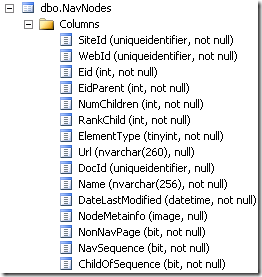
image

In order to query navigation nodes for particular web we need to know ID of parent SPSite and ID of SPWeb itself. They can be retrieved e.g. by PowerShell:

   1:  $w = Get-SPWeb http://example.com
   2:  $w.Site.ID
   3:  $w.ID

It will print the guids:

   1:  Guid
   2:  ----
   3:  {42514464-2EB2-4BB9-8A57-A5A6D80E3F67}
   4:   
   5:  Guid
   6:  ----
   7:  {92524380-DAE3-4CD6-B2C1-5A30C52ABC28}

(in our example SPSite.ID = {42514464-2EB2-4BB9-8A57-A5A6D80E3F67} and SPWeb.ID = {92524380-DAE3-4CD6-B2C1-5A30C52ABC28}). Now we can read the navigation items from NavNodes table:

   1:  select * from dbo.NavNodes
   2:  where WebId = '92524380-DAE3-4CD6-B2C1-5A30C52ABC28'


SiteId WebId Eid EidParent NumChildren RankChildren ElementType Url DocId Name DateLastModified NodeMetaInfo NonNavPage NavSequence ChildOfSequence
{Site ID}
{Web ID}
0 -1 1 0 0   NULL   {DateTime} NULL 0 0 0
{Site ID} {Web ID} 1025 0 2 0 1   NULL Quick launch {DateTime} NULL 1 1 0
{Site ID} {Web ID} 1002 0 2 1 1   NULL SharePoint Top Navbar {DateTime} NULL 0 1 0
{Site ID} {Web ID} 1000 0 0 2 0 NULL {Guid} default.aspx {DateTime} NULL 0 0 0
{Site ID} {Web ID} 2002 1002 0 0 0 NULL {Guid} Site 1 {DateTime} {binary} 0 0 1
{Site ID} {Web ID} 2003 1002 0 1 0 NULL {Guid} Page 1 {DateTime} {binary} 0 0 1
{Site ID} {Web ID} 2009 1025 0 0 0 NULL {Guid} Site 2 {DateTime} {binary} 0 0 1
{Site ID} {Web ID} 2017 1025 0 1 0 NULL {Guid} Page 2 {DateTime} {binary} 0 0 1

It is classical representation of hierarchical data in relational database table: there are 2 columns for creating parent-child relationship: Eid and EidParent, plus NumOfChildren which contains number of children for each node for improving performance I guess (in our example both global and local navigation contains 2 nodes). Root node has Eid = 0 and EidParent = –1. After that we have 2 special root nodes for current and global navigation: with Eid = 1025 and Eid = 1002 respectively. This is the key moment for understanding the workaround. These 2 special navigation nodes always should exist in NavNodes table for SPWeb (at least for publishing web). If they don’t exist, navigation won’t be saved like described in the beginning of the article. And this is what may happen when you export and import your site with stsadm. If you will try to get navigation nodes using the query above, you will get only root level node with Eid = 0 (and may be node for default.aspx with Eid = 1000), but without root nodes for global and current navigation with Eid = 1002 and Eid = 1025.

Now if you will get back to workarounds mentioned earlier you will see why it is important to have NavBar with ID = 1002 in onet.xml and why mentioned SQL insert works: it finds all WebId which don’t have node with Eid = 1002 and inserts it manually. However doing it for all SPWebs in one operation is not safe. First of all remember that any manual change in content database is not supported, and second – it may not be needed depending on web template used for web site. So it is better to minimize affected sites and make changes only for single problematic SPWeb. Also mentioned workarounds fix problem only for global navigation. Let’s address these problems and create more safer fix (if this word is relevant in case when we want to do manual changes in content database):

   1:  -- global navigation
   2:  INSERT INTO [NavNodes]
   3:  ([SiteId], [WebId], [Eid], [EidParent], [NumChildren], [RankChild],[ElementType],
   4:  [Url], [DocId], [Name], [DateLastModified], [NodeMetainfo], [NonNavPage],
   5:  [NavSequence], [ChildOfSequence])
   6:  values ('42514464-2EB2-4BB9-8A57-A5A6D80E3F67',
   7:  '92524380-DAE3-4CD6-B2C1-5A30C52ABC28' ,1002 ,0 ,0 ,1 ,1 ,'', NULL,
   8:  'SharePoint Top Navbar',getdate() ,NULL ,0 ,1 ,0)
   9:   
  10:  -- current navigation
  11:  INSERT INTO [NavNodes]
  12:  ([SiteId], [WebId], [Eid], [EidParent], [NumChildren], [RankChild],[ElementType],
  13:  [Url], [DocId], [Name], [DateLastModified], [NodeMetainfo], [NonNavPage],
  14:  [NavSequence], [ChildOfSequence])
  15:  values ('42514464-2EB2-4BB9-8A57-A5A6D80E3F67',
  16:  '92524380-DAE3-4CD6-B2C1-5A30C52ABC28',1025 ,0 ,0 ,0 ,1 ,'', NULL,
  17:  'Quick launch',getdate() ,NULL ,1 ,1 ,0)

After that go to Site settings > Navigation, made changes in global or current navigation nodes and click save. This time changes should be preserved. If you will select all navigation nodes from NavNodes table, you will see that now it contains all structure, and if you will try to work with navigation programmatically via PublishingWeb.Navigation.GlobalNavigationNodes or PublishingWeb.Navigation.CurrentNavigationNodes, you will be able to do it. BTW it also explains the fact how internally navigation nodes are filled when you click Ok on navigation settings page first time.

This is all for the problem with not saved navigation in Sharepoint. It was interesting investigation and I hope that even you won’t use it on practice, it will help to understand Sharepoint navigation better.

Monday, January 20, 2014

Change order of newly created publishing page or publishing site in navigation programmatically in Sharepoint

Most probably you already know about interesting behavior of Sharepoint navigation (since it exists from Sharepoint 2007): when you try to work with navigation nodes programmatically by accessing PublishingWeb.Navigation.GlobalNavigationNodes (or CurrentNavigationNodes), this collection will be empty until you will go to Site settings > Navigation and click Ok button. After this collection is filled and you may start really working with it. There is also number of workarounds for this already which allow to prefill navigation nodes and thus work with them using object model during provisioning (starting from Gary Lapointe’s gl-setnavigationnodes stsadm extension or PowerShell script from Waldek Mastykarz. If you will search you will find couple more solution). These solutions may be combined by one criteria: they solve problem for provisioning, but what about maintenance?

Will try to illustrate the problem: suppose that we provisioned site collection with number of sub sites and pages on the root site, so navigation (for this article it doesn’t matter is it current or global navigation) looks like this after provisioning:

image

Blue color means that nodes are provided dynamically by PortalSiteMapProvider, but not from PublishingWeb.Navigation.GlobalNavigationNodes collection. If we will use workarounds for prefilling navigation or if we will go to Site settings > Navigation and will click Ok, then navigation will look like this:

image

Green color means that navigation nodes are retrieved from PublishingWeb.Navigation.GlobalNavigationNodes collection, i.e. not constructed dynamically. After that we create new publishing web or new publishing page e.g. via feature. Interesting that after this navigation again uses dynamic node for this newly created sub site/page:

image

I.e. navigation is constructed both from PublishingWeb.Navigation.GlobalNavigationNodes collection and dynamically from PortalSiteMapProvider. It introduces problem e.g. if we need to change the order of the corresponding navigation node (using SPNavigationNode.Move method) we won’t be able to do it because there won’t be such node in it. Solution is the following: at first we need to mark corresponding publishing page or web as excluded from navigation:

   1: var page = pweb.GetPublishingPages().FirstOrDefault(
   2:     p => string.Compare(p.Name, pageName, true) == 0);
   3: if (page != null)
   4: {
   5:     page.IncludeInGlobalNavigation = false;
   6: }

Here are methods which we can use depending on the scenario:

After this PortalSiteMapProvider won’t show this page in navigation:

image

After that create new navigation node for the page or web programmatically and move it to the correct place:

   1: PublishingWeb pweb = ...;
   2: var globalNavigation = pweb.Navigation.GlobalNavigationNodes;
   3:  
   4: var node = SPNavigationSiteMapNode.CreateSPNavigationNode(title, url,
   5:     NodeTypes.AuthoredLinkPlain, globalNavigation);
   6: var dt = DateTime.Now;
   7: node.Properties["CreatedDate"] = dt;
   8: node.Properties["LastModifiedDate"] = dt;
   9: node.Properties["Description"] = "";
  10: node.Properties["Target"] = "";
  11: node.Update();
  12:  
  13: var nodeSite = globalNavigation.Cast<SPNavigationNode>().
  14:     FirstOrDefault(n => n.Title == "Test");
  15: if (nodeSite != null)
  16: {
  17:     node.Move(globalNavigation, nodeSite);
  18: }

In this example we moved new node for our page after node which corresponds to page/site with title “Test”. After this navigation looks like this:

image

I.e. we have navigation node for the new page in the right place in navigation, while dynamic node is hidden. Hope that this trick will help you in the working with Sharepoint navigation.

Wednesday, October 30, 2013

Declaratively configure navigation settings in Sharepoint publishing sites

If you have custom web template based on OTB publishing site (CMSPUBLISHING) you can configure navigation settings declaratively by adding NavigationProperties feature (id = 541F5F57-C847-4e16-B59A-B31E90E6F9EA) to your onet.xml and defining properties, e.g.:

   1: <Feature ID="541F5F57-C847-4e16-B59A-B31E90E6F9EA">
   2:   <Properties xmlns="http://schemas.microsoft.com/sharepoint/">
   3:     <Property Key="InheritGlobalNavigation" Value="true"/>
   4:     <Property Key="IncludeSubSites" Value="true"/>
   5:     <Property Key="IncludePages" Value="false"/>
   6:     <Property Key="IncludeInGlobalNavigation" Value="false"/>
   7:     <Property Key="IncludeInCurrentNavigation" Value="false"/>
   8:   </Properties>
   9: </Feature>

What other properties are supported? In order to answer on this question let’s check NavigationFeatureHandler feature receiver (from Microsoft.SharePoint.Publishing assembly). In its FeatureActivated method it uses private method ApplyNavigationProperties which does actual job:

   1:  
   2: private static void ApplyNavigationProperties(PublishingWeb publishingWeb,
   3: SPFeaturePropertyCollection properties)
   4: {
   5:     if (!publishingWeb.Web.AllProperties.ContainsKey("NavigationPropertiesSet"))
   6:     {
   7:         CmsSecurityUtilities.RunWithWebCulture(publishingWeb.Web, delegate {
   8:             CommonUtilities.ConfirmNotCentralAdminWebApp(publishingWeb.Web);
   9:             for (int j = 0; j < properties.Count; j++)
  10:             {
  11:                 SPFeatureProperty property = properties[j] as SPFeatureProperty;
  12:                 switch (property.Name)
  13:                 {
  14:                     case "InheritGlobalNavigation":
  15:                         publishingWeb.Navigation.InheritGlobal =
  16:                             bool.Parse(property.Value);
  17:                         break;
  18:  
  19:                     case "InheritCurrentNavigation":
  20:                         publishingWeb.Navigation.InheritCurrent =
  21:                             bool.Parse(property.Value);
  22:                         break;
  23:  
  24:                     case "ShowSiblings":
  25:                         publishingWeb.Navigation.ShowSiblings =
  26:                             bool.Parse(property.Value);
  27:                         break;
  28:  
  29:                     case "IncludeSubSites":
  30:                     {
  31:                         bool flag = bool.Parse(property.Value);
  32:                         publishingWeb.Navigation.GlobalIncludeSubSites = flag;
  33:                         publishingWeb.Navigation.CurrentIncludeSubSites = flag;
  34:                         break;
  35:                     }
  36:                     case "IncludePages":
  37:                     {
  38:                         bool flag2 = bool.Parse(property.Value);
  39:                         publishingWeb.Navigation.GlobalIncludePages = flag2;
  40:                         publishingWeb.Navigation.CurrentIncludePages = flag2;
  41:                         break;
  42:                     }
  43:                     case "GlobalIncludeSubSites":
  44:                         publishingWeb.Navigation.GlobalIncludeSubSites =
  45:                             bool.Parse(property.Value);
  46:                         break;
  47:  
  48:                     case "GlobalIncludePages":
  49:                         publishingWeb.Navigation.GlobalIncludePages =
  50:                             bool.Parse(property.Value);
  51:                         break;
  52:  
  53:                     case "CurrentIncludeSubSites":
  54:                         publishingWeb.Navigation.CurrentIncludeSubSites =
  55:                             bool.Parse(property.Value);
  56:                         break;
  57:  
  58:                     case "CurrentIncludePages":
  59:                         publishingWeb.Navigation.CurrentIncludePages =
  60:                             bool.Parse(property.Value);
  61:                         break;
  62:  
  63:                     case "GlobalDynamicChildLimit":
  64:                         publishingWeb.Navigation.GlobalDynamicChildLimit =
  65:                             int.Parse(property.Value);
  66:                         break;
  67:  
  68:                     case "CurrentDynamicChildLimit":
  69:                         publishingWeb.Navigation.CurrentDynamicChildLimit =
  70:                             int.Parse(property.Value);
  71:                         break;
  72:  
  73:                     case "OrderingMethod":
  74:                         publishingWeb.Navigation.OrderingMethod =
  75: (OrderingMethod) Enum.Parse(typeof(OrderingMethod), property.Value);
  76:                         break;
  77:  
  78:                     case "AutomaticSortingMathod":
  79:                     case "AutomaticSortingMethod":
  80:                         publishingWeb.Navigation.AutomaticSortingMethod =
  81: (AutomaticSortingMethod) Enum.Parse(typeof(AutomaticSortingMethod), property.Value);
  82:                         break;
  83:  
  84:                     case "SortAscending":
  85:                         publishingWeb.Navigation.SortAscending =
  86:                             bool.Parse(property.Value);
  87:                         break;
  88:  
  89:                     case "IncludeInGlobalNavigation":
  90:                         publishingWeb.IncludeInGlobalNavigation =
  91:                             bool.Parse(property.Value);
  92:                         break;
  93:  
  94:                     case "IncludeInCurrentNavigation":
  95:                         publishingWeb.IncludeInCurrentNavigation =
  96:                             bool.Parse(property.Value);
  97:                         break;
  98:                 }
  99:             }
 100:             publishingWeb.SetBooleanProperty("NavigationPropertiesSet", true);
 101:             publishingWeb.Update();
 102:         });
 103:     }
 104: }

So here we can see all supported properties:

Supported navigation properties
InheritGlobalNavigation
InheritCurrentNavigation
ShowSiblings
IncludeSubSites
IncludePages
GlobalIncludeSubSites
GlobalIncludePages
CurrentIncludeSubSites
CurrentIncludePages
GlobalDynamicChildLimit
CurrentDynamicChildLimit
OrderingMethod
AutomaticSortingMathod/AutomaticSortingMethod
SortAscending
IncludeInGlobalNavigation
IncludeInCurrentNavigation

You can use these properties in your onet.xml files.