One of the way to improve performance of your Sharepoint site is to implement custom web parts via ajax. As you probably know there are standard Sharepoint web parts which support ajax out of the box. E.g. Search core results web part has Ajax options in properties:
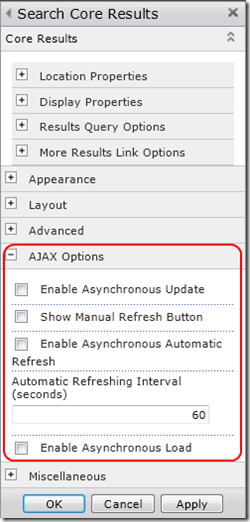
If you will check “Enable Asynchronous Load” option, web part will be loaded asynchronously and won’t block page loading. But not all standard web parts have this possibility. Custom web parts by default also are not ajax enabled. You need to do additional work in order to implement them asynchronously.
In this post I will show how to create async custom web part using “Framework for loading SharePoint web parts asynchronously” from Codeplex (thanks to author Chaitu Madala for sharing it). There are other ways to do that, but I decided to use this project as it is more or less good extendable and can be reused for many custom web parts in your solution. Basic idea is shown in the following schema:

Let’s begin from custom web part class. It should inherit BaseWebPart class from async framework project (BaseWebPart in turn inherits regular ASP.Net WebPart class). BaseWebPart contains 2 methods: one for creating container for progress indicator, another for registering asynchronous web service proxy. Simplified version looks like this:
1: public class BaseWebPart : WebPart
2: {
3: protected Panel contentContainer;
4:
5: protected void PrepareContentContainer()
6: {
7: try
8: {
9: if (HttpContext.Current.Request.Browser.EcmaScriptVersion.Major >= 1)
10: {
11: //Busy Box View (JS enabled)
12: Image spinnerImage = new Image();
13: spinnerImage.ImageUrl = String.Format("{0}{1}",
14: SPContext.Current.Web.Url, "/_layouts/AsyncWebpart/Images/loadingspinner.gif");
15: Label spinnerText = new Label()
16: { Text = "Please wait while the results are being loaded.." };
17:
18: contentContainer.ID = "" + this.ID + "Context";
19: contentContainer.Controls.Add(spinnerImage);
20: contentContainer.Controls.Add(new LiteralControl("<br />"));
21: contentContainer.Controls.Add(spinnerText);
22: //AJAX Enabled
23: }
24: else
25: {
26: //AJAX Disabled - Fallback mode
27: //Alternative content in case the user's browser does not support JS
28: contentContainer.Controls.Add(
29: new LiteralControl("It seems your browser doesn't support Javascript"));
30: }
31: }
32: catch (Exception ex)
33: {
34: // log
35: }
36: }
37:
38: protected void AddScriptManagerReferenceProxy(string referenceProxyUrl,
39: string referenceProxyJS)
40: {
41: try
42: {
43: ScriptManager thisScriptManager = ScriptManager.GetCurrent(this.Page);
44: if (thisScriptManager == null)
45: {
46: thisScriptManager = new ScriptManager();
47: this.Controls.Add(thisScriptManager);
48: }
49:
50: ServiceReference referenceProxy = new ServiceReference();
51: referenceProxy.Path = referenceProxyUrl;
52:
53: referenceProxy.InlineScript = true;
54: //If you are having issues identifying the names of the web service JS methods, uncomment the line above ^
55:
56: thisScriptManager.Services.Add(referenceProxy);
57:
58: //JS file contains proxy methods for web service - see file for details
59:
60: this.Page.ClientScript.RegisterClientScriptInclude(typeof(Page), referenceProxyUrl, referenceProxyJS);
61: }
62: catch (Exception ex)
63: {
64: // log
65: }
66: }
67: }
Web service will be described below. Here it is important to understand that we registered async proxy which can be called from javascript.
For this article let’s create simple custom web part with single custom property Delay. It contains delay in seconds which web service will wait until return response to the client. Those we will simulate long running operation. The code of web part will look like this:
1: public class AsyncCustomWebPart : BaseWebPart
2: {
3: [WebBrowsable(true)]
4: [Personalizable(PersonalizationScope.Shared)]
5: public int Delay { get; set; }
6:
7: protected override void OnLoad(EventArgs e)
8: {
9: try
10: {
11: EnsureChildControls();
12:
13: // register script to automatically load the web part into the content container
14: // pass all the property values through asynchronous call
15: this.Page.ClientScript.RegisterStartupScript(typeof (Page),
16: "startupScript" + this.ClientID,
17: string.Format("AsyncWebPartGetData('{0}', '{1}');",
18: this.Delay, contentContainer.ClientID), true);
19:
20: base.OnLoad(e);
21: }
22: catch (Exception ex)
23: {
24: // handle error
25: }
26: }
27:
28: protected override void CreateChildControls()
29: {
30: try
31: {
32: contentContainer = new Panel();
33:
34: // prepare container to hold the content
35: PrepareContentContainer();
36: // add web service reference and js handler
37: AddScriptManagerReferenceProxy(
38: "/_layouts/AsyncWebPart/AsyncWebPartService.asmx",
39: "/_layouts/AsyncWebPart/JS/AsyncWebPart.js");
40: }
41: catch (Exception ex)
42: {
43: // handle error
44: }
45: }
46:
47: public override void RenderControl(HtmlTextWriter writer)
48: {
49: contentContainer.RenderControl(writer);
50: base.RenderControl(writer);
51: }
52: }
Here in OnLoad method we ensure that child controls are created (line 11). In CreateChildControls method (lines 28-45) we create Panel control which will be actual container into which we will load html from web service. As we already saw in PrepareContentContainer method (line 35) we load animated gif which shows progress indicator on the page until web part content won’t be ready:

After that we add async web service proxy and reference to the AsyncWebPart.js file which is part of the async web parts framework (lines 37-39). I will show content of this javascript file below.
Then in OnLoad method we register javascript startup script for our custom function AsyncWebPartGetData which is defined in AsyncWebPart.js and pass all custom web part properties into this function. These properties will be then passed to the web service. I.e. we will still have possibility to change web part behavior via its properties even for asynchronous version.
Ok, what happens next? When page is loaded our javascript function is called. Let’s see the code of AsyncWebPart.js:
1: function AsyncWebPartGetData(delay, containerID)
2: {
3: //Remember to use entire namespace + class before method name
4: AsyncWebPart.AsyncWebPartService.GetUIHtmlForAsyncWebPart(
5: delay, AsyncWebPartComplete, AsyncWebPartError, containerID);
6: }
7:
8: //Client-side onComplete handler
9: function AsyncWebPartComplete(response, containerID)
10: {
11: //Populates the container with the response
12: var containerDiv = document.getElementById(containerID);
13: containerDiv.innerHTML = response;
14: }
15:
16: //Client-side onError handler
17: function AsyncWebPartError(response, containerID)
18: {
19: var containerDiv = document.getElementById(containerID);
20: containerDiv.innerHTML = "An error has occurred. Please contact administrator.";
21: }
AsyncWebPartGetData function is unique for our custom web part. I.e. if you will need to make another web part asynchronously, you need to create another function for it. Two other methods (AsyncWebPartComplete and AsyncWebPartError) can be reused for all web parts. AsyncWebPartGetData receives all custom web part properties as parameters. In our example it is delay and containerID (containerID should be passed to all another functions for other web parts. It is used then in callbacks in order to load html returned from web service). It calls generated web service proxy asynchronously and passes delay, callbacks and containerID (lines 4,5). After that control is returned to the page.
In real life registration of javascript function and asynchronous call to web service is very fast, so web part almost doesn’t affect page loading time. So if you have some slow web part, using of this technique may significantly improve performance and make user experience much better. But let’s continue.
When call reaches web service it makes the following:
1: [System.Web.Script.Services.ScriptService]
2: [WebService(Namespace = "http://tempuri.org/", Name = "AsyncWebPartService")]
3: [WebServiceBinding(ConformsTo = WsiProfiles.BasicProfile1_1)]
4: [ToolboxItem(false)]
5: public class AsyncWebPartService : System.Web.Services.WebService
6: {
7: [ScriptMethod]
8: [WebMethod]
9: public string GetUIHtmlForAsyncWebPart(int delay)
10: {
11: var ctrl = new MyControl();
12: ctrl.Delay = delay;
13:
14: var retOutputBuilder = new StringBuilder();
15: using (var stringWriter = new StringWriter(retOutputBuilder))
16: {
17: using (var textWriter = new HtmlTextWriter(stringWriter))
18: {
19: ctrl.RenderControl(textWriter);
20: }
21: }
22: return retOutputBuilder.ToString();
23: }
24: }
At first it creates instance of the custom control (line 11). Then it passes custom properties which we got from web part to created control (line 12). In this example we pass delay and control doesn’t make anything except waiting specified amount of seconds. But in real life you may pass all web part custom properties into it. Then service renders control to the string (lines 14-22) and returns the result. Note that as in web method GetUIHtmlForAsyncWebPart we actually create html for our web part, we should create separate web method for each web part which we would like to make asynchronous. Then as I mentioned above generate proxy for it and create javascript function in AsyncWebPart.js. In this example we used custom control, but it is also possible to use user controls with this technique (see e.g. this forum thread: ASP.NET how to Render a control to HTML). After that rendered string is passed back to the client and javascript handler loads it into container inside web part. It happens asynchronously without page re-loading.
The last thing which is worth mentioning is that if you want to use this approach, you need to separate web part from actual logic which renders UI. I.e. web part itself should be just lightweight container. But this is rather a good practice then limitation (e.g. OTB Sharepoint visual web parts are implemented exactly like this: web part is just a container which logic is located inside user control which is loaded dynamically).
That’s all which I would like to write about this approach. Again thanks to Chaitu Madala who shared it with community. Hope this article will help you if you will decide to use Framework for loading SharePoint web parts asynchronously in your work.
Update 2012-11-25: when use this approach you may encounter with the problem of incorrect context site for rendering your web parts. Solution is described here: Problem with context site in Sharepoint when call web service from javascript.


