Showing posts with label Sql server. Show all posts

Thursday, July 8, 2021

Get Sql Server database file's max size limit with db_reader permissions

Some time ago I wrote how to get current db size in Sql Server with limited db_reader permissions (see Calculate Sql Server database size having only db_reader permissions on target database). In this post I will show how you can also get max size limit of db file also having only db_reader permissions.

As you probably know in Sql Server we may set limit on db file size (and on db transaction log file size) using the following commands (in example below we limit both files sizes to 100Mb):

ALTER DATABASE {db}
MODIFY FILE (NAME = {filename}, MAXSIZE = 100MB);
GO

ALTER DATABASE {db}
MODIFY FILE (NAME = [{filename}.Log], MAXSIZE = 100MB);
GO

As result if we will check Database properties > Files - we will see these limits on both files:


In order to get these limits programmatically using db_reader permissions we should use another system stored procedure sp_helpdb and provider database name as parameter:

exec sp_helpdb N'{databaseName}'

This stored procedure returns 2 result sets. In 2nd result set it returns field maxsize which returns max size limit for db file. Here is the code which reads maxsize field from result of sp_helpdb proc:

using (var connection = new SqlConnection(connectionString))
{
	connection.Open();
	using (var cmd = connection.CreateCommand())
	{
		cmd.CommandText = $"exec sp_helpdb N'{connection.Database}'";
		using (var reader = cmd.ExecuteReader())
		{
			if (reader.NextResult())
			{
				if (reader.Read())
				{
					return reader["maxsize"] as string;
				}
			}
		}
	}
}

For database used in example above it will return string "100 Mb". Hope that it will help someone.

Friday, January 29, 2021

Calculate Sql Server database size having only db_reader permissions on target database

There are several possible ways to calculate database size (the same size which is shown when you right click on the database in Sql Server Management Studio > Properties > Files):

In this example we have 23 Mb of database file and 11 Mb of transaction log, total 34 Mb.

One way we can try is to run the following query:

select db_name(database_id) as database_name, 
    type_desc, 
    name, 
    size/128.0 as CurrentSizeMB
from sys.master_files
WHERE DB_NAME(database_id) = 'MyDatabase'

If you have permissions to run this command result will look like this:

As you can see it shows the same numbers as properties window shown above. The problem is that according to documentation you should have quite high server-level permissions to access sys.master_files:

The minimum permissions that are required to see the corresponding row are CREATE DATABASE, ALTER ANY DATABASE, or VIEW ANY DEFINITION.

If you don’t have one of these permissions result will be empty.

Is it possible to calculate database size having less permissions? E.g. having only db_reader permissions on target database. The answer is yes it is possible. In order to do that we need to use system stored procedure sp_spaceused:

use MyDatabaseName
exec sp_spaceused

It works also with db_reader permissions on the target database. Result will look like this:

It returns 2 result sets and in 1st result set it returns overall database size which is sum of db file name and transaction log (34 Mb in our example).

Monday, February 17, 2020

Several mandatory steps for every SQL Server installation

Recently I’ve installed MS Sql Server (don’t remember how many times I’ve done that already :) ) on the new virtual machine and realized that I always perform the following steps after each Sql Server installation:

1. Disable “sa” login

This step was added to mandatory tasks list after sad story: in hte times of beginning of my IT carrier one of my Sql Server instances ran with enabled “sa” login. Password was not very strong and after some time it was brute forced and I got malicious Sql Server job which tried to download and execute remote code on my PC. Fortunately I noticed that in time and made necessary actions. After that I always disable built-in “sa” login on Sql Server – this is the first things hackers will try to brute force on your instance.

2. Configure backups

This step is quite obvious. Remember that you should not only test that your backups work by specified schedule (e.g. if you configured nightly backups – check after few days that backups are really made during last nights) but also test restore scenario. Some time these simple steps will save you from a lot of problems. You may configure backups in Sql Server Management Studio > Management > Maintenance plans > New maintenance plan > Add Back Up Database Task from toolbox: After configuring backup set schedule in the same window.

Another important note is that you should not store backups on the same PC. Safest option is to move backups from local PC to the cloud storage using some cloud backup tool.

3. Limit Sql Server trace log size

If Sql Server runs long period of time it may flood hard drive with trace logs (don’t mix it with transaction logs – these are different). By default they are stored in MSSQL/Logs subfolders under your Sql Server instance folder. In order to configure their size go to Sql Server Management studio > Management > Right click on SQL Server Logs > Configure. Set some value in “Limit the number of error log files before they are recycled” and/or “Maximum size for error log file in KB”:

This simple action will allow to keep Sql Server logs size controlled. If you have similar mandatory steps in your practice please share them in comments.

Friday, January 13, 2017

Export images from MS SQL Server database without programming

As you probably know images can be stored directly in database, e.g. in the following table:

   1: CREATE TABLE [dbo].[Images](
   2:     [id] [uniqueidentifier] NOT NULL,
   3:     [name] [nvarchar](255) NOT NULL,
   4:     [data] [image] NOT NULL
   5: )

where image itself is stored in data column of image type and its name in name column. Sometimes we need to export one or all images from there. How to do that? Of course it is possible to write utility or PowerShell script, but for such small tasks I prefer to use non-programming approach. In this post I will show how to export images from MS SQL Server database without programming.

We will use free LinqPad tool for that. The good thing in LinqPad is that it doesn’t only allows to execute Sql queries, but also allows to write C# code for manipulating data. First of all we need to add connection to our SQL Server instance:

After that specify exact database in Connection dropdown list on the top and choose Language = C# Statements:

Now we can write the following Linq 2 Sql code for exporting single specific image:

   1: var img = Images.First(i => i.Id == new Guid("..."));
   2: using (var ms = new MemoryStream(img.Data.ToArray()))
   3: {
   4:     System.Drawing.Image.FromStream(ms).Dump("c:/dump/" + img.Name);
   5: }

Alternatively we may preview image in LinqPad preview window by calling Dump() method:

   1: var img = Images.First(i => i.Id == new Guid("..."));
   2: using (var ms = new MemoryStream(img.Data.ToArray()))
   3: {
   4:     System.Drawing.Image.FromStream(ms).Dump();
   5: }

If you want to export all images from the database table use the following code:

   1: foreach (var img in Images)
   2: {
   3:     using (var ms = new MemoryStream(img.Data.ToArray()))
   4:     {
   5:         System.Drawing.Image.FromStream(ms).Save("c:/dump/" + img.Name);
   6:     }
   7: }

In this example all images will be exported to c:\dump folder (ensure that it exists before to run the code). As you can see LinqPad is convenient tool for performing small maintenance tasks over SQL Server.

Monday, February 2, 2015

How to check in MS Sql Server to what db instance alias belongs to

Db aliases are used as additional level of addressing databases in connection strings: having alias you may change real db instance or even server name without reconfiguration of your apps, because alias will remain the same. But if you see connection string like that:

Integrated Security=SSPI;Persist Security Info=False;Initial Catalog=MyDatabase;Data Source=test

where “test” specified in Data Source is db alias, how to know to what db instance specified alias belongs to?

The easiest way is to use cliconfg tool. When you run it on the Alias tab you will see list of all used db aliases and real db instances they belong to:

image

Wednesday, October 8, 2014

T-SQL script for deleting big amount of records from table in SQL server database

Sometimes we need to delete big amount of records from the table in SQL Server database. If number of records is quite big (several millions) the simple delete command will hang:

   1: delete from Foo

In this case we can use the following approach: delete records by chunks (e.g. 100000 items per operation, but it depends on how many columns your table has. It if has a lot of columns and data, you may adjust this number for your scenario) until all records will be deleted. For example imagine that we have table [Log] used for logging some operations:

   1: create table [Log](
   2:     [Id] [int] identity(1,1) not null,
   3:     [ThreadId] [int] not null,
   4:     [EventType] [nvarchar](32) null,
   5:     [Message] [nvarchar](max) null,
   6:     [Created] [datetime] not null
   7: )

And suppose that this table grows quite fast and we need periodically delete old log records from it (e.g. older than 2 weeks). It can be done by creating job in SQL Server agent. For this job create the step which will run the following code:

   1: declare @s datetime
   2: set @s = GETDATE() - 14
   3: declare @cnt int
   4:  
   5: set @cnt = (select count(*) from [Log] where Created < @s)
   6: while @cnt > 0
   7: begin
   8:     delete top (100000)
   9:     from [Log]
  10:     where Created < @s
  11:     
  12:     set @cnt = (select count(*) from [Log] where Created < @s)
  13: end

This script will delete records from the Log table by chunks in 100000 rows until all records which are older than 2 weeks won’t be deleted and won’t hang because of big amount of data.

Saturday, June 21, 2014

FBA users management with pagination on SQL server side in Sharepoint. Part 1

Although in this article I describe FBA in relation with Sharepoint most of described ideas and concepts will be also useful if you work with different applications, e.g. with common ASP.Net web applications.

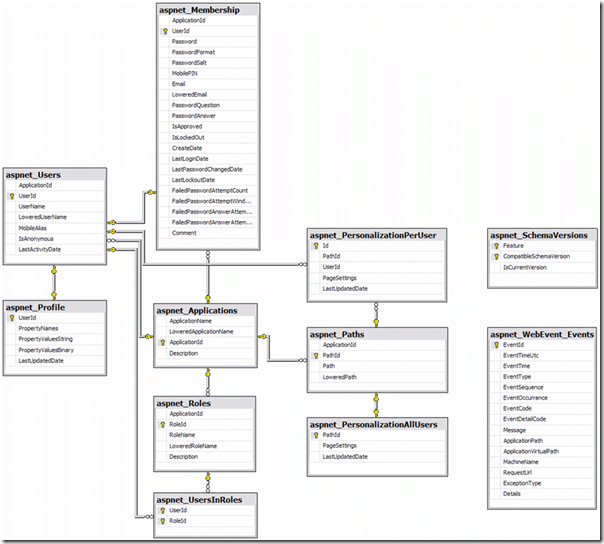
Forms based authentication (FBA) is one of the authentication types available for web applications (concept of forms authentication when users identify themselves by providing username and password is applicable in different types of applications, but in this post I will mostly refer to web applications). With FBA users physically may be located in different storages. Most frequent storage type is SQL Server, although they may be located e.g. in AD (and accessible via LDAP) or in custom storage (e.g. in the file on file system). For SQL server there are ready for use database script prepared by MS, which creates db with all necessary tables for FBA, and .Net classes SqlMembershipProvider and SqlRoleProvider for working with this database from the code (for AD scenario classes are ActiveDirectoryMembershipProvider and AuthorizationStoreRoleProvider). Here is the schema of aspnetdb:
image

This model is quite flexible and may be used in lot of scenarios including those applications which work with very big number of users. However in this case you may encounter with performance problems e.g. when list all users in user management administration. It is possible to use paging of course but if you will do it in-memory (i.e. inside of your application, when all users are retrieved from the database and logic of calculating and displaying correct page is implemented in the code), there won’t be real performance improvement. You may add caching, but first load anyway may be very slow.

Problem become even worse if you use FBA in more complex applications which have own user management system like Sharepoint and you need to add additional info to each user retrieved from SQL Server from this system as well. In this part I will show how to solve 1st problem by using paging on SQL Server side and in next part 2nd part will be handled on example with Sharepoint (update 2014-06-22: second part is published here).

SQL Server side paging is not new idea. Nowadays SQL Server handles it with ROW_NUMBER T-SQL function which became available from 2005 version of SQL Server. However SqlMembershipProvider doesn’t use it (instead it uses temp tables) and those can be used in earlier versions of the SQL Server. Let’s see how we may use it in our FBA application for improving performance.

First of all let’s see interface of MembershipProvider class which is base class for SqlMembershipProvider and all other providers (it can be also used as base class for FBA with custom storage. In this case you need to implement all its abstract methods by yourself):

image

If we want to optimize user listing we are interested in the following methods:

   1: public abstract MembershipUserCollection FindUsersByEmail(string emailToMatch,
   2:     int pageIndex, int pageSize, out int totalRecords);
   3:  
   4: public abstract MembershipUserCollection FindUsersByName(string usernameToMatch,
   5:     int pageIndex, int pageSize, out int totalRecords);
   6:  
   7: public abstract MembershipUserCollection GetAllUsers(int pageIndex,
   8:     int pageSize, out int totalRecords);

As you can see they have 3 parameters which are used for pagination:

- pageIndex
- pageSize
- totalRecords (output parameter)

In SqlMembershipProvider class these methods use the following stored procedures:

- aspnet_Membership_FindUsersByEmail
- aspnet_Membership_FindUsersByName
- aspnet_Membership_GetAllUsers

They are quite similar, let’s see how aspnet_Membership_GetAllUsers is implemented:

   1: CREATE PROCEDURE [dbo].[aspnet_Membership_GetAllUsers]
   2:     @ApplicationName       nvarchar(256),
   3:     @PageIndex             int,
   4:     @PageSize              int
   5: AS
   6: BEGIN
   7:     DECLARE @ApplicationId uniqueidentifier
   8:     SELECT  @ApplicationId = NULL
   9:     SELECT  @ApplicationId = ApplicationId FROM dbo.aspnet_Applications
  10:         WHERE LOWER(@ApplicationName) = LoweredApplicationName
  11:     IF (@ApplicationId IS NULL)
  12:         RETURN 0
  13:  
  14:  
  15:     -- Set the page bounds
  16:     DECLARE @PageLowerBound int
  17:     DECLARE @PageUpperBound int
  18:     DECLARE @TotalRecords   int
  19:     SET @PageLowerBound = @PageSize * @PageIndex
  20:     SET @PageUpperBound = @PageSize - 1 + @PageLowerBound
  21:  
  22:     -- Create a temp table TO store the select results
  23:     CREATE TABLE #PageIndexForUsers
  24:     (
  25:         IndexId int IDENTITY (0, 1) NOT NULL,
  26:         UserId uniqueidentifier
  27:     )
  28:  
  29:     -- Insert into our temp table
  30:     INSERT INTO #PageIndexForUsers (UserId)
  31:     SELECT u.UserId
  32:     FROM   dbo.aspnet_Membership m, dbo.aspnet_Users u
  33:     WHERE  u.ApplicationId = @ApplicationId AND u.UserId = m.UserId
  34:     ORDER BY u.UserName
  35:  
  36:     SELECT @TotalRecords = @@ROWCOUNT
  37:  
  38:     SELECT u.UserName, m.Email, m.PasswordQuestion, m.Comment, m.IsApproved,
  39:             m.CreateDate,
  40:             m.LastLoginDate,
  41:             u.LastActivityDate,
  42:             m.LastPasswordChangedDate,
  43:             u.UserId, m.IsLockedOut,
  44:             m.LastLockoutDate
  45:     FROM   dbo.aspnet_Membership m, dbo.aspnet_Users u, #PageIndexForUsers p
  46:     WHERE  u.UserId = p.UserId AND u.UserId = m.UserId AND
  47:            p.IndexId >= @PageLowerBound AND p.IndexId <= @PageUpperBound
  48:     ORDER BY u.UserName
  49:     RETURN @TotalRecords
  50: END
  51: GO

The idea is very simple here: it creates temporary table with auto incremented identity index column and userId (lines 22-27), then stores all userIds into this temp table ordered by user name (lines 29-34). As result we have own index table where first column contains number of row where appropriate user is stored. Last step is quite simple: initialize total records by number of affecting users (line 36) and return those users which correspond to the passed page index and page size by making cross-table query to database tables and built temporary table (lines 38-49). Stored procedures aspnet_Membership_FindUsersByEmail and aspnet_Membership_FindUsersByName use the same idea with additional filtering login by user name and email.

Now when we know how it works in backend, let’s prepare front end. In Sharepoint for displaying users list we may use convenient SPGridView class (in ASP.Net case you may use GridView control). For enabling paging we need to set AllowPaging property to true on the page where control is added and override its CreateDataSourceSelectArguments() method. Overriding can be done in custom class:

   1: public class CustomGridView : SPGridView
   2: {
   3:     protected override DataSourceSelectArguments CreateDataSourceSelectArguments()
   4:     {
   5:         int startRow = this.PageSize * this.PageIndex;
   6:         return new DataSourceSelectArguments(this.SortExpression, startRow,
   7:             this.PageSize);
   8:     }
   9: }

Here we only provide correct values for start row and page size. Without it SPGridView always passes 0 in start row. Then we need to implement DataSourceControl and DataSourceView classes which can be done like that:

   1: public class CustomFBADataSource : DataSourceControl
   2: {
   3:     private DataSourceView view;
   4:      
   5:     public CustomFBADataSource()
   6:     {
   7:         this.view = null;
   8:     }
   9:     protected override DataSourceView GetView(string viewName)
  10:     {
  11:         if (this.view == null)
  12:         {
  13:             this.view = new CustomFBAUsersView(this, viewName);
  14:         }
  15:         return this.view;
  16:     }
  17: }

For DataSourceView’s inheritor implementation is more complex:

   1: public class CustomFBAUsersView : DataSourceView
   2: {
   3:     public CustomFBAUsersView(IDataSource owner, string viewName):
   4:         base(owner, viewName)
   5:     {
   6:     }
   7:  
   8:     protected override IEnumerable ExecuteSelect(DataSourceSelectArguments args)
   9:     {
  10:         // get site details
  11:         var site = SPContext.Current.Site;
  12:         var settings = CodeFiles.Utils.GetFBAIisSettings(site);
  13:         if (settings == null)
  14:             return null;
  15:  
  16:         if (args.MaximumRows == 0)
  17:         {
  18:             return null;
  19:         }
  20:         // get paged users from sql database
  21:         int pageNumber = args.StartRowIndex/args.MaximumRows;
  22:         int totalRecords;
  23:         var membershipUsers = Membership.GetAllUsers(pageNumber, args.MaximumRows,
  24:             out totalRecords);
  25:         if (membershipUsers.Count == 0)
  26:         {
  27:             return null;
  28:         }
  29:  
  30:         var users = new DataTable();
  31:         users.Columns.Add("Name");
  32:         users.Columns.Add("Email");
  33:         users.Columns.Add("Active");
  34:  
  35:         foreach (MembershipUser membershipUser in membershipUsers)
  36:         {
  37:             var row = users.NewRow();
  38:             row["Name"] = membershipUser.UserName;
  39:             row["Email"] = membershipUser.Email;
  40:             row["Active"] = membershipUser.IsApproved ? "Yes" : "No";
  41:             users.Rows.Add(row);
  42:         }
  43:  
  44:         // add fake rows to allow switch pages
  45:         if (args.MaximumRows < totalRecords)
  46:         {
  47:             // fill previous pages
  48:             for (int i = 0; i < pageNumber; i++)
  49:             {
  50:                 for (int j = 0; j < args.MaximumRows; j++)
  51:                 {
  52:                     var row = users.NewRow();
  53:                     users.Rows.InsertAt(row, 0);
  54:                 }
  55:             }
  56:  
  57:             // fill following pages
  58:             var totalPages =
  59: Math.Ceiling(((decimal) totalRecords)/((decimal) args.MaximumRows));
  60:             for (int i = pageNumber + 1; i < totalPages; i++)
  61:             {
  62:                 for (int j = 0; j < args.MaximumRows; j++)
  63:                 {
  64:                     var row = users.NewRow();
  65:                     users.Rows.Add(row);
  66:                 }
  67:             }
  68:         }
  69:  
  70:         var dataView = new DataView(users);
  71:         return dataView;
  72:     }
  73: }

First of all it contains necessary logic for retrieving paged users information from SQL database (lines 20-42). It became possible after implementing of CreateDataSourceSelectArguments() method in inheritor of SPGridView control above, because after that argument passed in ExecuteSelect() method in DataSourceView got correct values for start row and maximum rows. But this is only half of all work. In order to be able to switch between pages we also need to make grid view “think” that there are also other pages, and amount of these pages (both preceding and subsequent related to the current page) should be exactly as in SQL Server. In order to do it we add fake empty rows to the resulting DataView object (lines 45-68).

After these manipulations we will get quite fast users listing which will work with good performance even if we have many users in our FBA database. In next part we will add information to each returned user from Sharepoint which will be done with Camlex library – open source library for building dynamic CAML queries via C# lambda expressions. With such tasks flexibility of Camlex is revealed on its full power. See you on the next part (update 2014-06-22: second part is published here).