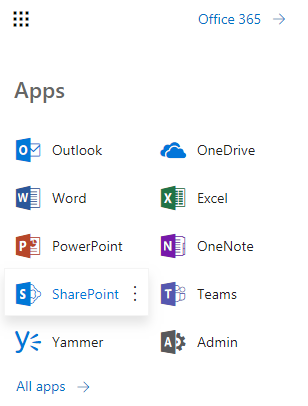
Modern Team/Communication sites are not displayed on the classic create site page in Sharepoint together with other “classic” web templates. In order to create them you need first click App launcher icon in top left corner and choose Sharepoint link there:
It will open Sharepoint landing page which will have Create site icon on the top:
After clicking on this icon you will be able to choose which modern site to create: Team or Communication:
And on the last step you have to specify site name, privacy and classification (later one is shown if classifications are configured for your tenant):
After clicking Next your modern Team or Classification site will be created.
If you work with SPFx and e.g. implement web part which uses react/redux for its components then you may face with need to combine multiple async redux actions into single one. Let’s assume that we have components which shows O365 groups and has appropriate properties and actions for it:
import * as React from 'react';
import { connect } from 'react-redux';
import { IGroup } from 'IGroup';
import * as GroupActions from 'groupActions';

export interface GroupListProps {
  groups: IGroup[];
  actions: {
    getGroups: GroupActions.IGetGroups,
  };
}

class GroupList extends React.Component<GroupListProps, {}> {
  public componentWillMount(): void {
    if (!this.props.groups) {
      this.props.actions.getGroups();
    }
  }

  public render() {
    return (
      this.props.groups ? <GroupsList items={this.props.groups} /> : <LoadingSpinner />
    );
  }
}

const mapStateToProps = (state: GroupListState) => ({
  groups: state.groups,
});

const mapDispatchToProps = (dispatch: Dispatch<any>) => ({
  actions: {
    getGroups: () => dispatch(GroupActions.getGroupsImpl()),
  }
});

/**
 * Connecting the store to the component
 */
export default connect(
  mapStateToProps,
  mapDispatchToProps
)(GroupList);
After that we decide to show both regular Sharepoint sites together with groups. We need to action for getting sites themselves (asynchronously using promises) and another action for combining groups and sites into single list. Both actions ae asynchronous. Let’s see how we may combine them to single one.
At first start with adding new action for sites:
import * as React from 'react';
import { connect } from 'react-redux';
import { IGroup } from 'IGroup';
import { ISite } from 'ISite';
import * as GroupActions from 'groupActions';
import * as SiteActions from 'siteActions';

export interface GroupListProps {
  groups: IGroup[];
  sites: ISite[];
  actions: {
    getGroups: GroupActions.IGetGroups,
	getSites: SiteActions.IGetSites,
  };
}

class GroupListContainer extends React.Component<GroupListProps, {}> {
  public componentWillMount(): void {
    if (!this.props.groups) {
      this.props.actions.getGroups();
    }

    if (!this.props.sites) {
      this.props.actions.getSites();
    }
  }

  public render() {
    return (
      this.props.groups ? <GroupsList items={this.props.groups} /> : <LoadingSpinner />
    );
  }
}

const mapStateToProps = (state: GroupListState) => ({
  groups: state.groups,
  sites: state.sites
});

const mapDispatchToProps = (dispatch: Dispatch<any>) => ({
  actions: {
    getGroups: () => dispatch(GroupActions.getGroupsImpl()),
	getSites: () => dispatch(SiteActions.getSitesImpl()),
  }
});

/**
 * Connecting the store to the component
 */
export default connect(
  mapStateToProps,
  mapDispatchToProps
)(GroupList);
Then create new combined action which calls 2 other actions (getGroups and getSites) via dispatch and additional action which will combine 2 groups and sites to single list:
import * as React from 'react';
import { connect } from 'react-redux';
import { IGroup } from 'IGroup';
import { ISite } from 'ISite';
import { IGroupOrSite } from 'IGroupOrSite';
import * as GroupActions from 'groupActions';
import * as SiteActions from 'siteActions';
import * as GroupOrSiteActions from 'groupOrSiteActions';

export interface GroupListProps {
  groups: IGroup[];
  sites: ISite[];
  groupsOrSites: IGroupOrSite[];
  actions: {
	getGroupsAndSites: GroupOrSiteActions.IGetGroupsAndSites
	combineGroupsAndSites: GroupOrSiteActions.ICombineGroupsAndSites
  };
}

class GroupListContainer extends React.Component<GroupListProps, {}> {
  public componentWillMount(): void {
    if (!this.props.groupsOrSites) {
      this.props.actions.getGroupsAndSites();
    }
  }

  public componentDidUpdate(prevProps: GroupListProps) {
    // Combine groups and sites
    if ((!isEqual(this.props.groups, prevProps.groups) || !isEqual(this.props.sites, prevProps.sites)) &&
	  this.props.groups && this.props.sites) {
	  this.props.actions.combineGroupsAndSites(this.props.groups, this.props.sites);
    }
  }

  public render() {
    return (
      this.props.groupsOrSites ? <GroupsList items={this.props.groupsOrSites} /> : <LoadingSpinner />
    );
  }
}

const mapStateToProps = (state: GroupListState) => ({
  groups: state.groups,
  sites: state.sites,
  groupsOrSites: state.groupsOrSites
});

const mapDispatchToProps = (dispatch: Dispatch<any>) => ({
  actions: {
	getGroupsAndSites: () => {
		dispatch(GroupActions.getGroupsImpl());
		return dispatch(SiteActions.getSitesImpl());
	},
	getGroupsAndSites: (groups: IGroup[], sites: ISite[]) => dispatch(GroupOrSiteActions.combineSitesImpl(groups, sites))
  }
});

/**
 * Connecting the store to the component
 */
export default connect(
  mapStateToProps,
  mapDispatchToProps
)(GroupList);
As result when you will call this combined action it will perform 2 async sub actions.
Some time ago I wrote about very convenient Chrome extension SP Editor (see this post: SP Editor Chrome extension: free open source alternative to Sharepoint Designer). It allows to perform many operations with your Sharepoint Online or on-prem site right in the browser without running any scripts or installing additional tools. However like usual Chrome extension it is disabled by default in private (incognito) Chrome mode. This is not very convenient because when you work with Sharepoint Online you often need to login to different sites with different accounts and incognito mode is often used for that.
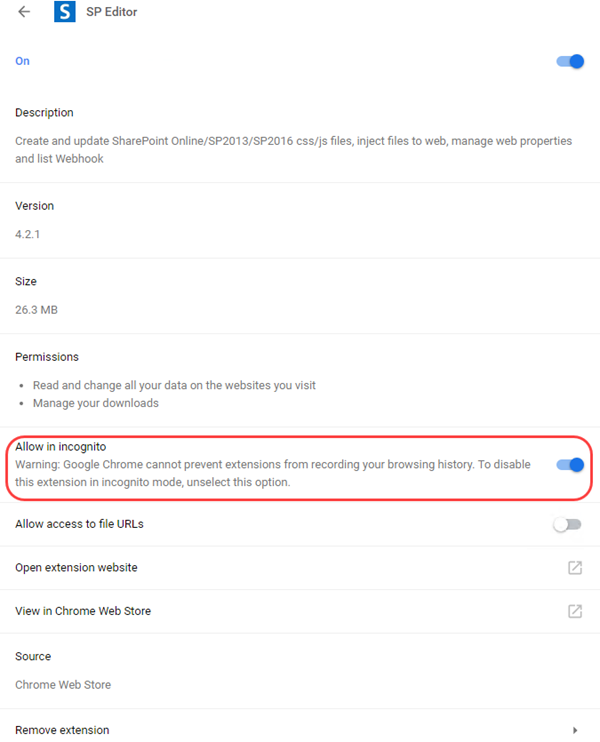
The good thing is that it is quite easy to enable SP Editor for incognito mode: go to Chrome menu > More tools > Extensions > SP Editor > Details. In opened window click “Allow in incognito”:
After that extension will become available in private mode (you will need to re-open F12 developer tools to see SharePoint tab from SP Editor there).
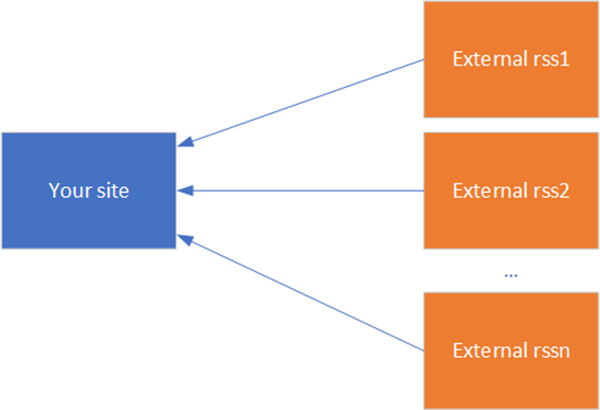
Suppose that we have web site which shows information from multiple RSS feeds. In this example I will use Sharepoint site which consumes RSS feeds using standard RSS-viewer web part but it also can be site on any other technology:
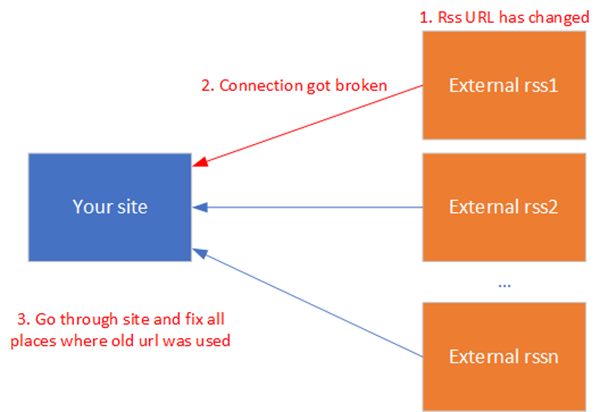
In this case if external provider will decide to change RSS url – connection to your site will be also broken. And if you showed it in many places you will need to go through all of them and fix one by one:
In case of Sharepoint this may be real problem because you will need to go through all sub sites, locate all RSS-viewer web parts which consume broken RSS feed, edit page and fix RSS feed in web part properties.
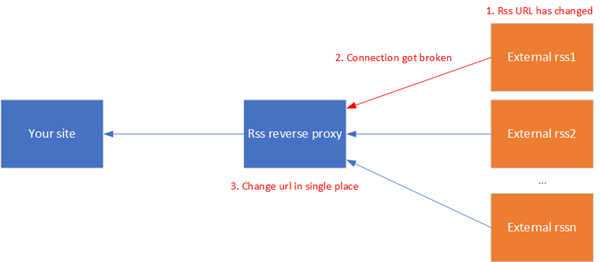
It would be better if our site would be decoupled from external RSS urls via some intermediate reverse proxy: in this case on our site we would use proxy urls instead of real urls and in proxy we would just define mapping between proxy url and real RSS url:
In this case if url of one of RSS feeds will be changed we will only need to change appropriate mapping between proxy url and RSS url on proxy level – much simpler than go through the site and fix all places where RSS feed is used.
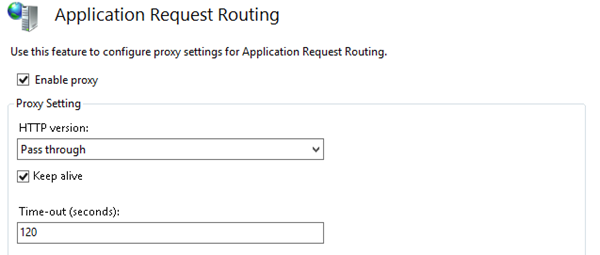
Such RSS reverse proxy can be configured using IIS reverse proxy: we will need Application request routing (AAR) and URL rewrite IIS modules installed. After installing AAR go to proxy settings (IIS manager > Server > Application request routing cache > Server proxy settings) and enable proxy there:
After that create new site in IIS (in Sharepoint instead of new site you may also create sub folder under /_layouts virtual folder and use it as proxy url. In this case you will need to define url rewrite rules on this sub folder level i.e. not on the root site level – see below), define its url via binding (suppose that it will be http://myproxy.com) or define port and add the following rewrite rule:
Here we tell IIS that all requests which come to http://myproxy.com/example should be rewritten to the real RSS feed url https://example.com/feed (this is not example of really working RSS feed – just for example). Now if external RSS feed’s url https://example.com/feed will be changed – you will only need to go there and change it in the URL rewrite rule. Your site still will use http://myproxy.com/example in all places and won’t require changes.
As you probably know MS changed MVP award renewal dates and now renewal emails are coming 1th July. I’ve got the following exciting email yesterday: Congratulations 2018-2019 Microsoft MVPs. This is my 8th award and I’m very happy to be part of the great community. In my regular work I try to participate in Sharepoint and Office 365 communities and help people to solve technical problems. Big thanks to MS for recognizing these efforts. In last few years focus has been moved from on-prem Sharepoint to Sharepoint Online, Office 365 and Azure. This is very interesting to observe how these new platforms and services grow and evolve interacting with each other. And even more interesting to take part in this process by contributing to community life and communicating with MS product teams. Thanks to all readers of my blog and see you with new challenges and solutions :)
If you develop Sharepoint Framework web parts (SPFx web parts) you probably familiar with one part of it’s development process – local web server which is launched with gulp:
gulp serve –nobrowser
It launches local web server on localhost:port which allows you to test SPFx web part on own dev environment (not release version) which consumes js and css files directly from this localhost:port address. So you may modify them and reload the page without redeploying app package to App catalog (which is time consuming if you develop js/css).
However sometimes local web server hangs without visible reasons. In order to avoid it you may stop it (Ctrl-C) and run again – but it also takes time and not always help. If you faced with this problem go to cmd window with launched gulp serve and try click Esc several times. If after that it will start to show output like this:
When I checked in Fiddler request details of UpdateAsync() call I found that JSON representation of group object which is passed to HTTP PATCH method really has responseHeaders property:
Not sure why responseHeaders property is now added to the group object when it is first returned from graph. In order to avoid this error I used the following workaround: construct new Group object, specify group id and only those properties which should be updated. I.e. update object with minimal required specified properties:
var graphClient = CreateGraphClient(accessToken);
var existingGroup = await graphClient.Groups[groupId].Request().GetAsync();

var groupToUpdateMinimal = new Group();
groupToUpdateMinimal.Id = groupId;

bool updateGroup = false;
if (!string.IsNullOrEmpty(description) && existingGroup.Description != description)
{
	groupToUpdateMinimal.Description = description;
	updateGroup = true;
}

bool existingIsPrivate = existingGroup.Visibility == "Private";
if (isPrivate != null && existingIsPrivate != isPrivate.Value)
{
	groupToUpdateMinimal.Visibility = isPrivate.Value ? "Private" : "Public";
	updateGroup = true;
}

if (updateGroup)
{
	await graphClient.Groups[groupId].Request().UpdateAsync(groupToUpdateMinimal);
}
In this case only id, description and visibility properties are passed to HTTP PATCH method: