Showing posts with label URL rewrite. Show all posts

Wednesday, September 2, 2020

Redirect traffic from single site collection in Sharepoint on-prem via URL rewrite IIS module

Suppose that you have Sharepoint on-prem web application with multiple site collections which have own urls and need to perform maintenance work on one of these site collections so others will remain working. In order to do that you may temporary redirect traffic from this site collection to external page (e.g. to maintenance page hosted outside of this site collection). Technically it can be done by adding URL rewrite rule to Sharepoint web app in IIS. Rule will look like this:

This rule will redirect traffic from site collection with url /test to external site http://example.com. This is the same rule in xml which is added to web.config of Sharepoint web app:

<rewrite>
  <rules>
	<rule name="MyRule" enabled="true" stopProcessing="true">
	  <match url="test/*" />
	  <action type="Redirect" url="http://example.com" appendQueryString="false" redirectType="Found" />
	</rule>
  </rules>
</rewrite>

Note that if you perform temporary maintenance work on site collection then Redirect type should be set to Found (302) like shown above and not to Permanent (301). In case of permanent redirect browser will cache response and will redirect users from this site collection even after maintenance will be completed and rule will be removed from the site.

Wednesday, July 11, 2018

Decouple from RSS feeds urls using IIS reverse proxy

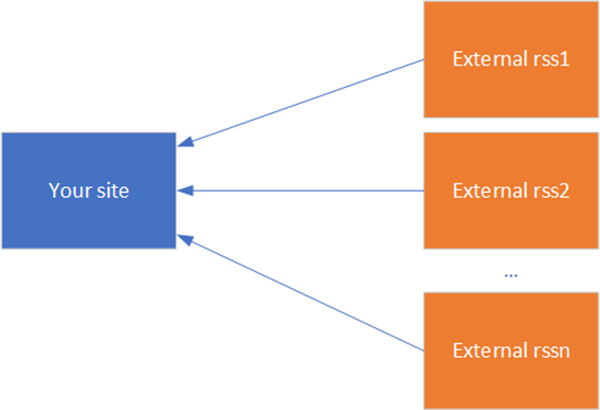
Suppose that we have web site which shows information from multiple RSS feeds. In this example I will use Sharepoint site which consumes RSS feeds using standard RSS-viewer web part but it also can be site on any other technology:

01

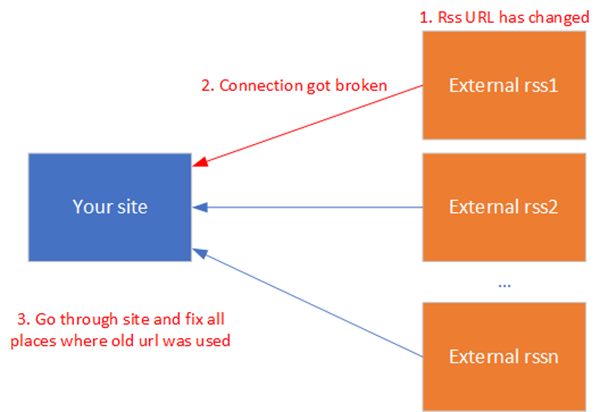
In this case if external provider will decide to change RSS url – connection to your site will be also broken. And if you showed it in many places you will need to go through all of them and fix one by one:

02

In case of Sharepoint this may be real problem because you will need to go through all sub sites, locate all RSS-viewer web parts which consume broken RSS feed, edit page and fix RSS feed in web part properties.

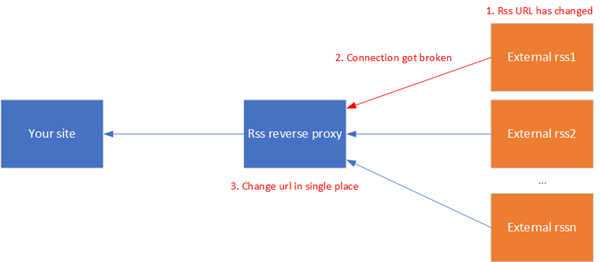
It would be better if our site would be decoupled from external RSS urls via some intermediate reverse proxy: in this case on our site we would use proxy urls instead of real urls and in proxy we would just define mapping between proxy url and real RSS url:

03

In this case if url of one of RSS feeds will be changed we will only need to change appropriate mapping between proxy url and RSS url on proxy level – much simpler than go through the site and fix all places where RSS feed is used.

04

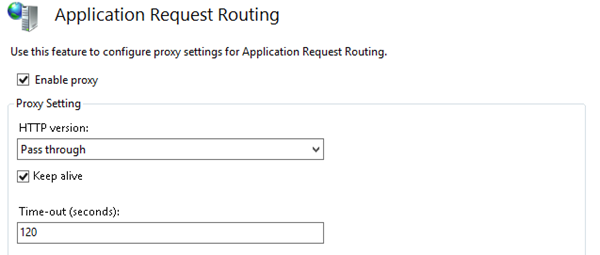
Such RSS reverse proxy can be configured using IIS reverse proxy: we will need Application request routing (AAR) and URL rewrite IIS modules installed. After installing AAR go to proxy settings (IIS manager > Server > Application request routing cache > Server proxy settings) and enable proxy there:

05

After that create new site in IIS (in Sharepoint instead of new site you may also create sub folder under /_layouts virtual folder and use it as proxy url. In this case you will need to define url rewrite rules on this sub folder level i.e. not on the root site level – see below), define its url via binding (suppose that it will be http://myproxy.com) or define port and add the following rewrite rule:

06

Here we tell IIS that all requests which come to http://myproxy.com/example should be rewritten to the real RSS feed url https://example.com/feed (this is not example of really working RSS feed – just for example). Now if external RSS feed’s url https://example.com/feed will be changed – you will only need to go there and change it in the URL rewrite rule. Your site still will use http://myproxy.com/example in all places and won’t require changes.

Wednesday, May 16, 2018

Redirect Sharepoint WebDAV network locations from http to https

As you probably know it is possible to connect to Sharepoint sites and doclibs via WebDAV in Wnidows explorer view, by creating new network location or by mapping new network drive to Sharepoint site. If your site works via http WebDAV will use http, if site uses https – WebDAV also will work over https. What if you want to force users to use https instead of http?

First of all you have to configure your Sharepoint stie to use https (purchase SSL certificate, install it on your IIS server, add https binding to Sharepoint site in IIS manager, change alternate access mappings in Central administration). After that you need to redirect traffic from http to https. In order to do that use URL Rewrite IIS module and add new blank rule which looks like this:

2018-05-16_11-27-55

This rule will redirect http requests to https in browser. But also it will redirect http to https for WebDAV clients. If you will open fiddler and will try to open network location which uses http url then you will see something like that (test was done on Windows 10 client):

Request headers:

PROPFIND http://example.com
User-Agent: Microsoft-WebDAV-MiniRedir/10.0.16299

Response headers:

HTTP/1.1 301 Moved Permanently
Location: https://example.com

Where instead of example.com will be url of your Sharepoint site. I.e. URL Rewrite IIS module successfully redirects traffic also for WebDAV.

Sunday, December 20, 2015

Remove X-Frame-Options = SAMEORIGIN HTTP header in Sharepoint or allow Sharepoint site to be shown in iframe

By default Sharepoint 2013 adds X-Frame-Options = SAMEORIGIN HTTP header to the response for better security (in order to avoid clickjacking attacks). However because of that Sharepoint site may be shown in iframe only inside the same site, i.e. it is not possible to show it in iframe inside another external site. Sometime this requirement becomes more important and we will need to allow sites to be shown in iframes. In this post I will show how to solve this issue.

We will use URL Rewrite IIS module for changing value of X-Frame-Options HTTP header from SAMEORIGIN to empty string. Although it is not 100% correct behavior because allowed values for the header are: DENY, SAMEORIGIN, ALLOW-FROM (last one doesn’t work in FF and Chrome at the moment of writing this article), i.e. if we don’t need this header we need to remove it completely. However with URL Rewrite it is only possible to change headers, not remove it (I tried to remove it by adding <remove name=”X-Frame-Options” /> to system.webServer > httpProtocol > customHeaders in web.config, but it didn’t help). And with empty value IE, FF and Chrome allow site to be opened in iframe.

First of all we need to install URL Rewrite IIS extension if it is not done yet. After that go to IIS Manager, select appropriate Sharepoint site and click URL Rewrite on the right side. Create new empty outbound rule like it is shown on the following picture:

Note that you need to specify variable name as RESPONSE_X-Frame-Options, not just X-Frame-Options. And you should not add neither RESPONSE_X-Frame-Options nor X-Frame-Options to URL Rewrite > Allowed Server Variables, like it is shown in some articles.

If you will check web.config rule should look like this:

   1: <rewrite>
   2:   <outboundRules>
   3:     <rule name="Rule1" patternSyntax="Wildcard" stopProcessing="false">
   4:       <match serverVariable="RESPONSE_X-Frame-Options" pattern="*" />
   5:       <action type="Rewrite" value="" />
   6:     </rule>
   7:   </outboundRules>
   8: </rewrite>

Now if you will check response from your Sharepoint site in Fiddler you will see that X-Frame-Options header is empty:

After that it will be possible to show your site in iframe. Hope it will help someone, but anyway don’t forget about security.

Saturday, September 21, 2013

Rule for URL rewrite module for redirecting from no www to www address without using domain name

In one of my previous articles (see Several useful SEO rules via IIS URL rewrite module) about URL rewrite IIS module I showed how to add a rule which will redirect users from address with no www prefix to the address with www:

   1: <rule name="redirect_from_nowwww_to_www" enabled="true" stopProcessing="true">
   2:   <match url=".*" />
   3:     <conditions>
   4:       <add input="{HTTP_HOST}" pattern="^example\.com$" />
   5:     </conditions>
   6:   <action type="Redirect" url="http://www.example.com/{R:0}"
   7: appendQueryString="true" redirectType="Permanent" />
   8: </rule>

It works, but it contains domain name (example.com) which makes it specific to particular site. You can’t just copy and paste it to another web.config: in this case you will need to change the values to new host header.

Here is the more universal implementation of the same rule:

   1: <rule name="redirect_from_nowwww_to_www" enabled="true" stopProcessing="true">
   2:   <match url=".*" />
   3:   <conditions>
   4:     <add input="{HTTP_HOST}" pattern="^(www\.)(.+)$" negate="true" />
   5:   </conditions>
   6:   <action type="Redirect" url="http://www.{HTTP_HOST}/{R:0}"
   7: appendQueryString="true" redirectType="Permanent" />
   8: </rule>

Here I used possibility to add negative conditions (host doesn’t match to www pattern on line 4) and possibility to use server variables in actions ({HTTP_HOST} in action url on line 6). It will work like 1st rule, but can be used as is on any site accessed by http (in order to make it work for https, change http to https on line 7. Note also that in real implementation lines 6 and 7 should be on the single line).

Saturday, December 8, 2012

Several useful SEO rules via IIS URL rewrite module

In this post I would like to share with you several useful rules for IIS URL rewrite module, which can increase rating of your site for search engines. Before to add these rules to the web.config we need to install URL rewrite extension on the web server, otherwise site won’t work.

The first rule is redirect with 301 (Permanent redirect) http status code from the url without www prefix to the url with www. Very often sites are available by both urls, e.g. http://www.example.com and http://example.com. Search engines may treat these sites as separate (most of search engines may handle this case, but I would not suggest experimenting) and as content on them will be the same, search rank may be decreased. In order to fix this problem we need to setup permanent redirect from one address to another. It is important to use permanent redirect (301), because in this case search engine will know that url from which redirect was made is not used anymore and can be deleted from search index. Another way to perform redirect is to use 302 (Moved temporarily), but in this case page won’t be deleted from index. In theory it also can impact search rating, but I didn’t find exact evidences so if you know that please share it in comments.

In order to add the redirection rule to the site running on IIS we will use IIS URL rewrite module. You can add rules by several ways:

  • via UI – in IIS manager select site under the question and then select URL rewrite in the right panel (it will be added after installation of URL rewrite extension. Note that you need to restart IIS manager after installation. No need to make iisreset)
  • directly to the web.config using any text editor, e.g. notepad.

UI is just convenient interface for adding rules to the web.config. Result in both cases will be the same: rules will be added to the web.config of your site. In this post I will show how to add rules to web.config directly.

Rules are added to the <system.webServer> section under <rewrite>/<rules>. Redirection rule from no www to www will look like this:

   1: <rule name="redirect_from_nowwww_to_www" enabled="true" stopProcessing="true">
   2:   <match url=".*" />
   3:     <conditions>
   4:       <add input="{HTTP_HOST}" pattern="^example\.com$" />
   5:     </conditions>
   6:   <action type="Redirect" url="http://www.example.com/{R:0}"
   7: appendQueryString="true" redirectType="Permanent" />
   8: </rule>

Note that above I separated <action> to 2 lines (lines 6 and 7) in order to fit the article width, but in real example it should be single line. This rules tells to rewrite module that it should be applied to all urls (line 2) which have host “example.com” (line 4) and response should be redirected with 301 status code to “http://www.example.com” (lines 6-7). Here for matching urls we used regular expressions. {R:0} means back reference in term of regexp, which in this example has url part after the host. Plus we need to add possible query string in order to keep existing functionality working: see appendQueryString="true" attribute.

After that you can run fiddler and check that when you enter http://example.com in the browser, you will be redirected to http://www.example.com with 301 status. The rule will be also applied to all pages on the sites, including images and css.

Another useful rule is redirect from addresses without trailing slash to the addresses with slash: http://example.com/about –> http://example.com/about/. The reason here is the same: search engines may treat these url as different urls and if they will have the same content (in most cases they will), search rank can suffer. In order to add these redirection you can use the following url:

   1: <rule name="add_trailing_slash" stopProcessing="true">
   2:   <match url="(.*[^/])$" />
   3:   <conditions>
   4:     <add input="{REQUEST_FILENAME}" matchType="IsFile" negate="true" />
   5:     <add input="{REQUEST_FILENAME}" matchType="IsDirectory" negate="true" />
   6:   </conditions>
   7:   <action type="Redirect" redirectType="Permanent" url="{R:1}/" />
   8: </rule>

Here we used several conditions which mean that if physical file or folder are requested (matchType="IsFile" and matchType="IsDirectory"), the rule should not be applied (negate="true"). With this url you may have problems, e.g. if you use some CMS which allows to edit content of commonly used in SEO files robots.txt and sitemap.xml dynamically (i.e. if content is stored in the content database and routings are configured dynamically: http://example.com/robots.txt or http://example.com/sitemap.xml). In this case IIS won’t treat them as files and will add trailing slash: http://example.com/robots.txt/. Also it may cause problems on login view or administrative views if you use ASP.Net MVC (some actions won’t work). Solution is do disable this rule for these views. In order to avoid mentioned problems we need to add several additional conditions:

   1: <add input="{REQUEST_FILENAME}" matchType="Pattern" negate="true"
   2: pattern="robots\.txt" />
   3: <add input="{REQUEST_FILENAME}" matchType="Pattern" negate="true"
   4: pattern="sitemap\.xml" />
   5: <add input="{REQUEST_URI}" matchType="Pattern" negate="true" pattern="^/admin.*" />
   6: <add input="{REQUEST_URI}" matchType="Pattern" negate="true" pattern="^/users/.*" />
   7: <add input="{REQUEST_URI}" matchType="Pattern" negate="true"
   8: pattern="^/packaging/.*" />

This example contains conditions for administrative views for Orchard CMS. Here I excluded internal urls “/admin”, “/users”, “/packaging” from the rule (these urls are used in Orchard).

Note that also I used lowercase rule names with underscores, you may use more user friendly names for your rules. I used to this syntax :) That’s all what I wanted to write about in this article. Hope that it will be useful for you.

Sunday, November 25, 2012

Fix “HTTP Error 500.19 - Internal Server Error” when install ASP.Net MVC 3 site on IIS 8

Some time ago I moved MVC 3 site to the Windows Server 8 with IIS 8. Right after installation I got the following error:

HTTP Error 500.19 - Internal Server Error
The requested page cannot be accessed because the related configuration data for the page is invalid.

Site worked properly on Windows Server 2008 R2 with IIS 7.5, so web.config was correct. The problem was in missing URL rewrite module for IIS. In the site I used several rewrite rules which are stored in web.config as you probably know. As URL rewrite module was not installed on the server, whole section with rewrite rules was not recognized and IIS shown above error. After installation of URL rewrite module, site became working.

This is not ASP.Net MVC specific problem. It may occur for general ASP.Net sites as well. So hope that this tip will help you if you will get the same problem.

Saturday, November 10, 2012

Http module BeginRequest is not invoked when use URL rewrite IIS module

URL rewrite IIS module allows you to define rules, conditions and actions based on incoming URL pattern and variables (host, query string, etc). E.g. using it you may setup permanent redirects (http status code 301) from one URL to another. Often it is used for SEO, for example redirect from non-www URL to www. Redirect of course is not the only possible action which can be defined in URL rewrite module. Here is the full list of available actions:

  • Rewrite
  • None
  • Redirect
  • Custom response
  • Abort request

Rewrite action is frequently used for defining user-friendly URLs, which also gives advantages for SEO and for general usability. So URL rewrite module is quite powerful tool and in my opinion every web developer which works with Microsoft stack should get familiar with it in order to create advanced web applications.

However if you use this IIS extension in conjunction with custom http modules, you may encounter with the following problem: BeginRequest handlers, defined in the http modules, are not called when URL of incoming request matches conditions in the URL rewrite module’s rule, and it tries to make permanent redirect to another URL. However EndRequest is called every time, regardless of was request redirected by IIS module or not. If you use Unit of work pattern and IoC you may get exception because of that. E.g. consider the following example (StructureMap is used as IoC):

   1: public class UnitOfWorkModule : IHttpModule
   2: {
   3:     public void Init(HttpApplication context)
   4:     {
   5:         context.BeginRequest += context_BeginRequest;
   6:         context.EndRequest += context_EndRequest;
   7:     }
   8:  
   9:     public void Dispose()
  10:     {
  11:     }
  12:  
  13:     private void context_BeginRequest(object sender, EventArgs e)
  14:     {
  15:         var instance = ObjectFactory.GetInstance<IUnitOfWork>();
  16:         instance.Begin();
  17:     }
  18:  
  19:     private void context_EndRequest(object sender, EventArgs e)
  20:     {
  21:         var instance = ObjectFactory.GetInstance<IUnitOfWork>();
  22:         try
  23:         {
  24:             instance.Commit();
  25:         }
  26:         finally
  27:         {
  28:             instance.Dispose();
  29:         }
  30:     }
  31: }

In the BeginRequest we get instance of IUnitOfWork from IoC and call Begin() method. Under the hood it starts transaction. In the EndRequest we again get instance of IUnitOfWork and call Commit() method. Without URL rewrite it works because lifetime of unit of work is defined as per-request (in terms of StructureMap it has InstanceScope.Hybrid scope, in order to be able to write unit tests without http request). But if BeginMethod handler is not called, we get exception because transaction was not started and there is nothing to commit.

I tried to search for this problem and found several mentions on the stackoverflow without solution, so decided to analyze it. First of all we need to understand how URL rewrite module works. I strongly recommend the following article for understanding the basics: IIS URL Rewriting and ASP.NET Routing. The most important thing for us is the following:

The URL Rewrite module is a native code module that plugs into the request-processing pipeline at the Pre-begin Request or Begin Request stage.

I will also copy the image from original article here for convenience:
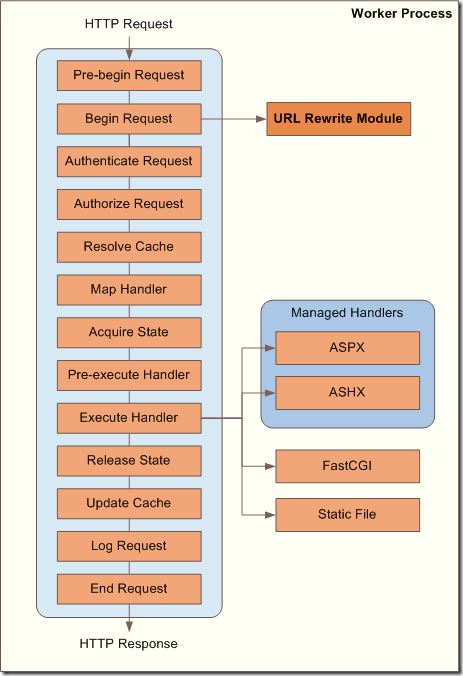
image

So now we know where URL rewrite module is called: “at the Pre-begin Request or Begin Request stage”. I wanted to clarify on what particular step it was called in my case (don’t fully get this “or”, i.e. when it is called in Pre-begin request and when in Begin request. If you know that please share it in comments). In order to do this I enabled Trace feature in IIS and used Failed request mapping tracing for details (see this post about this IIS feature: Using Failed Request Tracing to Trace Rewrite Rules) and found that it was executed on pre-request stage:

PRE_BEGIN_REQUEST_STARTModuleName="RewriteModule"
PRE_BEGIN_REQUEST_ENDModuleName="RewriteModule", NotificationStatus="NOTIFICATION_CONTINUE"

After that for testing I created 2 simple http modules in the Hello world ASP.Net web application with the following code:

   1: public class Module1 : IHttpModule
   2: {
   3:     public static object lockObj = new object();
   4:  
   5:     public void Init(HttpApplication context)
   6:     {
   7:         context.BeginRequest += context_BeginRequest;
   8:         context.EndRequest += context_EndRequest;
   9:     }
  10:  
  11:     void context_BeginRequest(object sender, EventArgs e)
  12:     {
  13:         lock (lockObj)
  14:         {
  15:             File.AppendAllText("c:\\temp\\modules.log",
  16:                 Thread.CurrentThread.ManagedThreadId +
  17:                 " Module1.BeginRequest" + Environment.NewLine);
  18:         }
  19:     }
  20:  
  21:     void context_EndRequest(object sender, EventArgs e)
  22:     {
  23:         lock (lockObj)
  24:         {
  25:             File.AppendAllText("c:\\temp\\modules.log",
  26:                 Thread.CurrentThread.ManagedThreadId +
  27:                 " Module1.EndRequest" + Environment.NewLine);
  28:         }
  29:     }
  30:  
  31:     public void Dispose()
  32:     {
  33:     }
  34: }

And second one:

   1: public class Module2 : IHttpModule
   2: {
   3:     public void Init(HttpApplication context)
   4:     {
   5:         context.BeginRequest += context_BeginRequest;
   6:         context.EndRequest += context_EndRequest;
   7:     }
   8:  
   9:     void context_BeginRequest(object sender, EventArgs e)
  10:     {
  11:         lock (Module1.lockObj)
  12:         {
  13:             File.AppendAllText("c:\\temp\\modules.log",
  14:                 Thread.CurrentThread.ManagedThreadId +
  15:                 " Module2.BeginRequest" + Environment.NewLine);
  16:         }
  17:     }
  18:  
  19:     void context_EndRequest(object sender, EventArgs e)
  20:     {
  21:         lock (Module1.lockObj)
  22:         {
  23:             File.AppendAllText("c:\\temp\\modules.log",
  24:                 Thread.CurrentThread.ManagedThreadId +
  25:                 " Module2.EndRequest" + Environment.NewLine);
  26:         }
  27:     }
  28:  
  29:     public void Dispose()
  30:     {
  31:     }
  32: }

I.e. both modules make the same: register handlers for BeginRequest and EndRequest and just log the execution to the text file (lock is used in order to synchronize access for the log file from several threads). Then registered them in web.config in the following order:

   1: <system.webServer>
   2:   <modules runAllManagedModulesForAllRequests="true">
   3:     <remove name="Module1"/>
   4:     <remove name="Module2"/>
   5:     <add name="Module1" type="MyNamespace.Module1"/>
   6:     <add name="Module2" type="MyNamespace.Module2"/>
   7:   </modules>
   8: </system.webServer>

Here how log looks like in this case:

Module1.BeginRequest
Module2.BeginRequest
Module1.EndRequest
Module2.EndRequest

(I removed thread id as it is not relevant here. Before of testing I removed all references to css and js files from the test web application, so there was always only one thread/http request). This is quite clear: at the first Module1 is executed, then Module2, because they are defined in this order in the web.config.

Now we need to simulate redirection from URL rewrite module. In our situation rewrite module will be executed before both modules’ BeginRequest (because it is executed on pre-BeginRequest stage as we saw above). So I changed the code of Module1 which is called first and added permanent redirect:

   1: void context_BeginRequest(object sender, EventArgs e)
   2: {
   3:     lock (lockObj)
   4:     {
   5:         File.AppendAllText("c:\\temp\\modules.log",
   6:             Thread.CurrentThread.ManagedThreadId +
   7:             " Module1.BeginRequest" + Environment.NewLine);
   8:     }
   9:     HttpContext.Current.Response.RedirectPermanent("http://google.com");
  10: }

(RedirectPermanent() method was added in .Net 4.0). Now I got the following log:

Module1.BeginRequest
Module1.EndRequest
Module2.EndRequest

As you can see BeginRequest in Module2 was not executed at all, but EndRequest was executed for all modules anyway. Module1 in this example plays role of URL rewrite module, while Module2 – custom http module. This example shows that when redirect is called BeginRequest handlers are skipped (Module1.BeginRequest is not taken into account because redirect was made from it), but EndRequest are executed always, even if response is redirected (probably it is executed in finally block so it works also for ThreadAbortException which occurs when request processing is interrupted).

As we saw in example above this is the normal ASP.Net behavior. So now we only have to fix the problem in our http module with unit of work. It is quite easy now when we understand the internals:

   1: public class UnitOfWorkModule : IHttpModule
   2: {
   3:     public void Init(HttpApplication context)
   4:     {
   5:         context.BeginRequest += context_BeginRequest;
   6:         context.EndRequest += context_EndRequest;
   7:     }
   8:  
   9:     public void Dispose()
  10:     {
  11:  
  12:     }
  13:  
  14:     private void context_BeginRequest(object sender, EventArgs e)
  15:     {
  16:         var instance = ObjectFactory.GetInstance<IUnitOfWork>();
  17:         instance.Begin();
  18:     }
  19:  
  20:     private void context_EndRequest(object sender, EventArgs e)
  21:     {
  22:         if (HttpContext.Current.Response.StatusCode == (int)HttpStatusCode.MovedPermanently)
  23:         {
  24:             return;
  25:         }
  26:  
  27:         var instance = ObjectFactory.GetInstance<IUnitOfWork>();
  28:         try
  29:         {
  30:             instance.Commit();
  31:         }
  32:         finally
  33:         {
  34:             instance.Dispose();
  35:         }
  36:     }
  37: }

In the EndRequest handler we added a check that current status code is not 301 (HttpStatusCode.MovedPermanently) because we know that BeginRequest was not called in this case and unit of work is not initialized. If it is, just return without trying to commit unit of work.

Hope that this post will help to those who will face with similar problem.