Recently we faced with the following problem: when tried to set DenyAddAndCustomizePages property of modern Sharepoint site to Disabled (which means that customizations will be enabled for that site) using PnP PowerShell:
Set-PnPTenantSite -Url $url -NoScriptSite:$false
the following error was thrown:
Error in proc_GetSitesAllowDenyList, no rowset returned
In order to fix it you have to call Connect-PnPOnline for tenat’s admin center (https://{tenant}-admin.sharepoint.com) not to target site itself. Also using CSOM version works more stable than shown Set-PnPTenantSite. Here is the final code:
If you use search on your Sharepoint site you may face with the issue that search crawler stuck in Crawling full status. In the logs you may find the following error:
Failed to create session with indexer ---> Microsoft.Ceres.SearchCore.Services.ContentRouter.ContentException: Unable to connect to index system
In this case try to execute the following PowerShell cmdlets:
It should show all components of search topology in Active state:
If there will be components which state is Degraded – your topology is in wrong state. In this case solution is to recreation of Search service application. After that run full crawl and it should work and stop successfully this time.
When you create O365 group and add team to this group you may face with the following issue: group owners and members which are added via Azure AD portal (https://portal.azure.com) are synced to team owners and members with delay. Let’s say we created group and added team to the group. During creation we specified 1 user as group owner:
If we will check now Team for this group > Manage team > Owners we will see that Owners list will be initially empty:
After some time group owner will appear in team owners:
(Note that there is still 0 owners count in parenthesis – but this is another issue. Probably bug in current version of Teams web app). Same happens also for group members and team members. This sync delay may take several hours.
In this forum thread there is suggests to use beta API for adding owners to group, i.e.:
Tenant storage entities (or tenant properties) allow to store tenant-wide properties which will be accessible from all site collections across tenant. It is often needed in installation PowerShell scripts to save some common settings to tenant storage entities. Also we may need to do that using app permissions i.e. using app id and secret instead of credentials of specific user. In this post I will show the method which may be used for that.
At first let’s try the most obvious way using PnP PowerShell cmdlets. There is overload of Connect-PnPOnline cmdlet which connects to Shrepoint Online using app id and secret instead of user credentials:
However it will give Access denied error even if app has FullControl permissions on tenant level:
Note that in this example I connected to the app catalog site for setting storage entity (below it is described why). But there will be also the same error if you will try to connect to the tenant’s root site or to tenant admin center.
Now let’s try use CSOM and OfficeDevPnP assemblies directly in PowerShell:
At first we load CSOM and OfficeDevPnP.Core assemblies. Then we need to connect to some existing site in our tenant and get app catalog url programmatically using CSOM. After that we create ClientContext using app catalog url and call Web.SetStorageEntity method. This is the trick because if you will try to call this method with any other web site you will get the same Access denied error. Also in this example we used great Load-CSOMProperties helper method from Gary Lapointe which allows to load object with properties using CSOM in PowerShell. It can be found here: https://gist.github.com/glapointe/cc75574a1d4a225f401b.
After you will run this code it will update tenant storage entity using app permissions.
If you work with Sharepoint you probably faced already with fields xml definitions and probably know that field has 3 different names:
Title/TitleResource (display name)
InternalName
StaticName
Title is quite obvious: this is the user friendly display name. But what about InternalName and StaticName? In most cases they are the same but there are situations when they may be different. In this post I will show such situation.
Let’s create new site content type TestContenType and add new Text site column with long name. Length of the field name should be greater than 32 symbols. We won’t use spaces and non-latin symbols for simplicity. In my test I used name TextFieldWithVeryVeryLongInternalName which has 37 symbols:
If we will check schema xml of this content type and this field we will see something like that (I used Sharepoint Online client browser for checking xml schema’s):
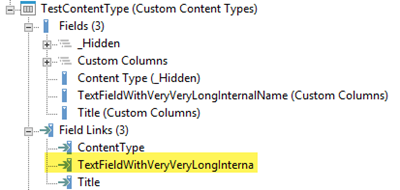
(below it will be explained why field link TextFieldWithVeryVeryLongInternalName is highlighted)
As you can see both in content type and field xml definition all names (Title, InternalName, StaticName) are set to original value “TextFieldWithVeryVeryLongInternalName”. It gives us first important finding: site columns may have InternalNames which length is greater than 32 symbols.
Now let’s create new list and add our TestContentType to this list. As you probably know in this case Sharepoint creates new List content type which has the same name as original site content type but is not equal to it – it inherits original site content type instead. First of all content type id will be longer: it will inherit original content type id and add guid after “00”:
{parent content typeid}00{guid without dashes}
i.e. in our case content type id of list content type will be:
0x0100CD88C368C93C7D4D89E7D60F478C2BF000{guid without dashes}
(see below). But this is not the only difference. Let’s see what happened with FieldLink on our long name field:
See the difference with the site content type? List content type has field link with exactly 32 symbols: TextFieldWithVeryVeryLongInterna. Let’s check xml definitions of list content type and list field:
Pay attention on TextFieldWithVeryVeryLongInternalName field. Title and StaticName are still set to original value (TextFieldWithVeryVeryLongInternalName) but InternalName is now trimmed to 32 symbols TextFieldWithVeryVeryLongInterna. Also notice that field ID is the same as in original site column:
{947d0169-b8c1-417b-aba9-891357b7d4d5}
In list field’s xml definition we will see the same:
So this is the scenario when field’s InternalName and StaticName may be different: when you try to add site column which InternalName’s length is greater than 32 symbols to the list.
In addition to that I would also mention that if you would try to add more fields which have equal first 32 symbols in InternalName Sharepoint will add integer suffix to ensure that InternalName is still unique: TextFieldWithVeryVeryLongIntern0, TextFieldWithVeryVeryLongIntern1, etc.
Update 2021-09-27: also found that non-alphanumerical symbols are encoded in InternalName of list field. E.g. if we have site column with dash in it's name "Field-Test" then it's InternalName will be still "Field-Test" while InternalName of appropriate list field will be encoded "Field_x002d_Test1".
In this post I will show how to call Azure functions which are secured with AAD from C#. Let’s assume that you already created Function app and secured it with AAD. In this example I will use Advanced AAD authentication configuration of the Function app which may be used e.g. when Function app is created in one tenant but it’s Azure functions supposed to be used in another tenant (and thus should be secured against this other tenant):
Briefly in order to secure Azure function with AAD we need to register new app in the directory against which we want to authenticate users which will use Azure function (Azure Active Directory > App registrations > New app registration); in this example let’s call it test-secured-functions for reference. Then in authentication settings of the Function app: in Client ID specify app id of test-secured-functions, Client Secret – client secret of test-secured-functions (can be generated from app’s Settings > Keys) and in Issuer Url – url of the form https://sts.windows.net/{tenantId} where tenantId is id of the tenant where test-secured-functions is registered (can be found in Azure Active Directory > Properties > Directory ID).
After that copy base url of any Azure function (e.g. https://{azurefuncname}.azurewebsites.net – those which comes before /api/… part) in the Function app and add it to Allowed token audiences. Otherwise you will get HTTP 401 Unauthorized when will try to get access token for calling Azure function from C#.
Now the tricky part; go to test-secured-functions > Settings > Properties and change “Home page URL” and “App ID URI” properties to the base url of Azure function – same which was added to Allowed token audiences on previous step (https://{azurefuncname}.azurewebsites.net). It is more important to set “Home page URL” - it will be used as app id when we will get access token:
Now we may call our AAD secured Azure function from C#:
string aadInstance = "https://login.windows.net/{0}";
string tenant = "{tenant}.onmicrosoft.com";
string serviceResourceId = "https://{azurefuncname}.azurewebsites.net";
string clientId = "{clientId}";
string appKey = "{clientSecret}";

var authContext = new AuthenticationContext(string.Format(CultureInfo.InvariantCulture, aadInstance, tenant));
var clientCredential = new ClientCredential(clientId, appKey);
AuthenticationResult result = authContext.AcquireTokenAsync(serviceResourceId, clientCredential).Result;
Console.WriteLine(result.AccessToken);
Here you need to replace {tenant} with your tenant name, {azurefuncname} with name of your Azure function, {clientId} and {clientSecret} are from test-secured-functions app – same which were used in Fucntion app > Active Directory Authentication above. Notice that serviceResourceId variable contains base url of our Azure functions. I.e. we ask access token for scope = url of our Azure function. If we won’t set this property we will get the following error when try to call above code:
AADSTS50001: The application named https://{azurefuncname}.azurewebsites.net was not found in the tenant named {tenant}.onmicrosoft.com. This can happen if the application has not been installed by the administrator of the tenant or consented to by any user in the tenant. You might have sent your authentication request to the wrong tenant
If we will decode token (e.g. on https://jwt.io/) we will see that it’s aud property is set exactly to requested serviceResourceId, i.e. base url of Azure function. This is why we set this base url to the app’s “Home page url” above – API searched for the app by this url during the call of AuthenticationContext.AcquireTokenAsync() method:
Once token is obtained we may call Azure function using regular way by providing Authorization HTTP header with Bearer token:
var request = WebRequest.Create("https://{azurefuncname}.azurewebsites.net/api/test") as HttpWebRequest;
request.Method = "POST";
request.ContentType = "application/json";
request.Headers.Add("Authorization", "Bearer" + " " + accessToken);

string data = ...;
var byteData = Encoding.UTF8.GetBytes(data);
request.ContentLength = byteData.Length;
var stream = request.GetRequestStream();
stream.Write(byteData, 0, byteData.Length);

using (var response = request.GetResponse() as HttpWebResponse)
{
    ...
}
Using this method you will be able to call your AAD secured Azure functions from C# or PowerShell. Hope this information will help someone.
Sometime we need to query list items against fields which have UserMulti type. In order to do that with Camlex we will use support of LookupMulti field types added few years ago in Camlex (see Camlex 4.2 and Camlex.Client 2.2 are released) and knowledge about behavior of Eq operator when it is used with multi lookup fields: Multi lookup fields in CAML queries. Eq vs Contains. Briefly when Eq operator is used with LookupMulti field types it has different semantic: instead of matching list items which actually equal to specified value it will match items which include this value. Consider the following example:
User user = web.EnsureUser(userName);
var query = new CamlQuery();
query.ViewXml = Camlex.Query().Where(x => x["TestField"] == (DataTypes.LookupMultiId)user.Id.ToString()).ToString(true);
var listItems = list.GetItems(query);
ctx.Load(listItems);
ctx.ExecuteQueryRetry();
At first it searches for the user by user name and then uses userId for creating the query. This query will return all items which include user with specific user id (in example above userId = 4) in TestField which has UserMulti type. This field may contain only this user or it may contain several users including those which we are searching for – in both cases list item will be returned. This was one of the reasons of why support of Includes keyword was not added to Camlex – there is no need for that as the same result may be achieved with simple Eq operator.